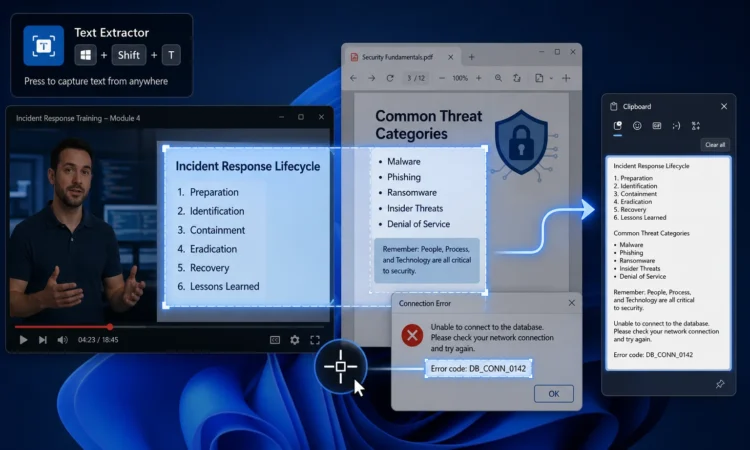
Have you ever been watching a video tutorial where the presenter flashed a complex line of code or a long website URL on the screen, and you had to frantically pause the video to type it out character by character? Or maybe you have received an important document that was scanned as a picture, completely locking away the text inside. We all know the pain of encountering text that we desperately need to copy, only to realize it is completely unselectable.
Today is August 06, 2026, and it is time to permanently banish this frustration from your daily computing routine. There is a hidden utility available for Windows users that completely revolutionizes how you interact with your screen. It feels like pure magic, but it is actually a remarkably clever piece of official software.
Let us dive into the ultimate productivity secret: the Text Extractor.
Unlocking Microsoft PowerToys
To perform this magic trick, you will need a suite of tools called Microsoft PowerToys. If you have not heard of it, Microsoft PowerToys is a set of free, open-source utilities designed to help power users and developers get more out of Windows.
Instead of being built directly into the default Windows installation, it is an optional download that builds on familiar Windows experiences and adds thoughtful tools that boost productivity, streamline workflows, and unlock customization options that don’t exist out of the box. Because PowerToys is an open-source project, you can even visit GitHub to explore the codebase, report issues, contribute, and stay up to date with what’s new in each release.
Among its impressive collection of over 25 utilities is the Text Extractor, a tool specifically designed to copy text from anywhere on screen using OCR. OCR stands for Optical Character Recognition, which means the software acts like a pair of digital eyes, reading the letters in an image and converting them into actual, editable text.
How to Get Equipped
Setting this up takes less than five minutes. Here is your quick installation guide:
- Open the Microsoft Store on your machine. Ensure your system meets the requirements: Windows 11 or Windows 10 version 2004 (20H1 / build 19041) or newer.
- Search for “Microsoft PowerToys” and hit install. You can also install it by visiting the Microsoft PowerToys GitHub releases page and downloading the executable installer directly.
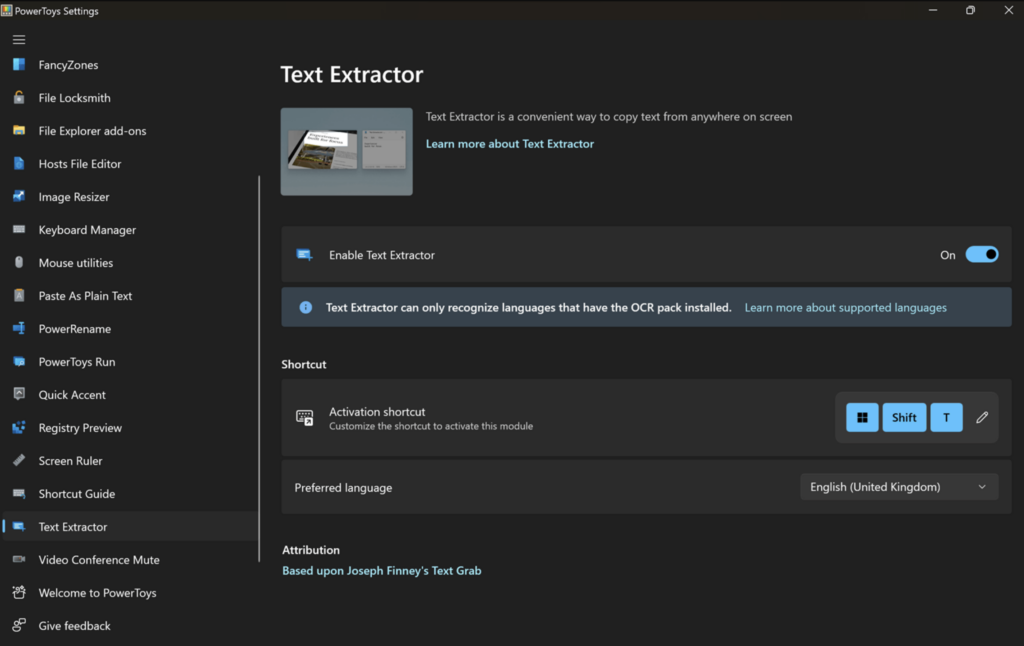
- Once downloaded, open the application and ensure the Text Extractor module is toggled on in the settings menu.
Performing the Magic Trick
Now that you have the software running silently in the background, you are ready to perform the extraction hack.
Whenever you encounter text trapped inside an unselectable format, simply press the activation shortcut (default: Win + Shift + T).
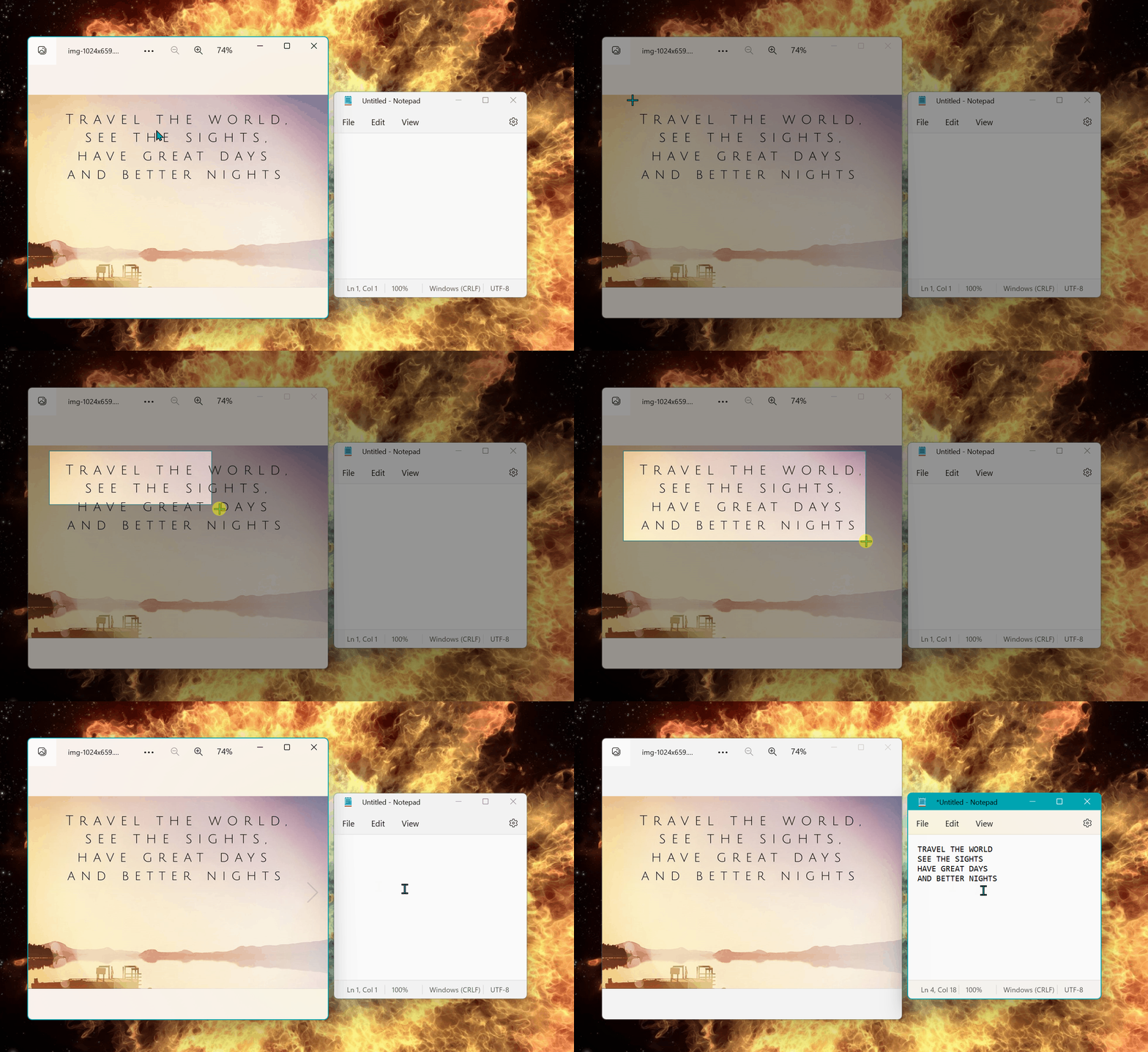
The moment you press these keys, the magic happens. With the activation shortcut, you’ll see an overlay on the screen. Your mouse cursor will turn into a precision crosshair. Next, simply click and hold your primary mouse button and drag to activate your capture over the exact area of the screen you want to copy.
As soon as you release the mouse button, the overlay disappears. The computer has instantly read the letters within that box, and the text will be saved to your clipboard. You can now open a Word document, a chat window, or an email, right-click, and hit paste. The text will appear perfectly formatted, as if you had typed it out yourself.
“A true lifehack does not just look cool on a video; it permanently removes a small piece of friction from your daily routine, letting you focus on what you want to get done—faster, smarter, and with more control.”
Real-World Scenarios Where This Shines
Once you start using this shortcut, you will wonder how you ever survived without it. Here are just a few scenarios where the Text Extractor becomes an absolute lifesaver:
- Virtual Meetings: When a colleague shares a PowerPoint presentation over a Zoom or Teams call, you can instantly copy their bullet points directly from the live video feed.
- Error Messages: Sometimes Windows throws a bizarre error code in a pop-up box that refuses to let you highlight it. Just use the Text Extractor and paste the error directly into a search engine to find a solution.
- Protected Documents: If someone sends you a PDF with disabled editing and copying privileges, you can easily bypass the restriction by highlighting the paragraphs you need.
Taking It Further: Advanced Paste
If you want to take your clipboard game to the next level, PowerToys has recently supercharged how you paste information. A sister utility called Advanced Paste is a powerful clipboard management tool that transforms your clipboard content into any format you need.
For example, Advanced Paste includes a feature called Paste as Plain Text, which enables you to paste text stored in your clipboard, excluding any text-formatting, by using a quick key shortcut. This means that after you extract text from a colorful graphic, you can paste it without accidentally bringing over any weird background colors or bizarre fonts. The feature replaces any formatting included with the clipboard text with an unformatted version of the text.
The Quick Reference Guide
To help you commit this to memory, here is a handy cheat sheet for your new favorite tool:
| Feature | The Action | What It Does |
| Activate Extractor | Press Win + Shift + T | Opens the screen capture overlay. |
| Capture Area | Click and hold primary mouse button and drag | Activates your capture and saves text to your clipboard. |
| Advanced Paste | Enable in PowerToys settings | Transforms your clipboard content into any format you need. |
| Cancel Capture | Press the Escape key | Deactivates the tool without copying anything. |
Stop manually typing out things that are already on your screen. Install PowerToys today, memorize that shortcut, and watch your daily digital frustrations disappear in a flash.