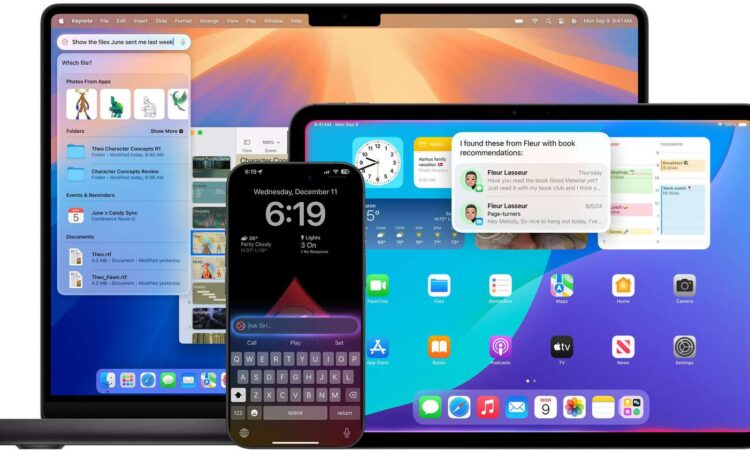
It is time to talk about the biggest shift in how we interact with our computers. If you have ever felt frustrated by a voice assistant that misunderstands your questions, loses track of the conversation, or just throws a generic web link at you, you are not alone. But those days are rapidly coming to an end.
Thanks to the rollout of Apple Intelligence, the digital assistant we all know has received a massive brain upgrade. On the Mac, Siri has evolved from a simple voice command tool into a deeply integrated, highly capable standalone assistant.
Here is a deep dive into the new AI-powered Siri experience and how it will completely change your daily workflow.
The Floating Assistant Window
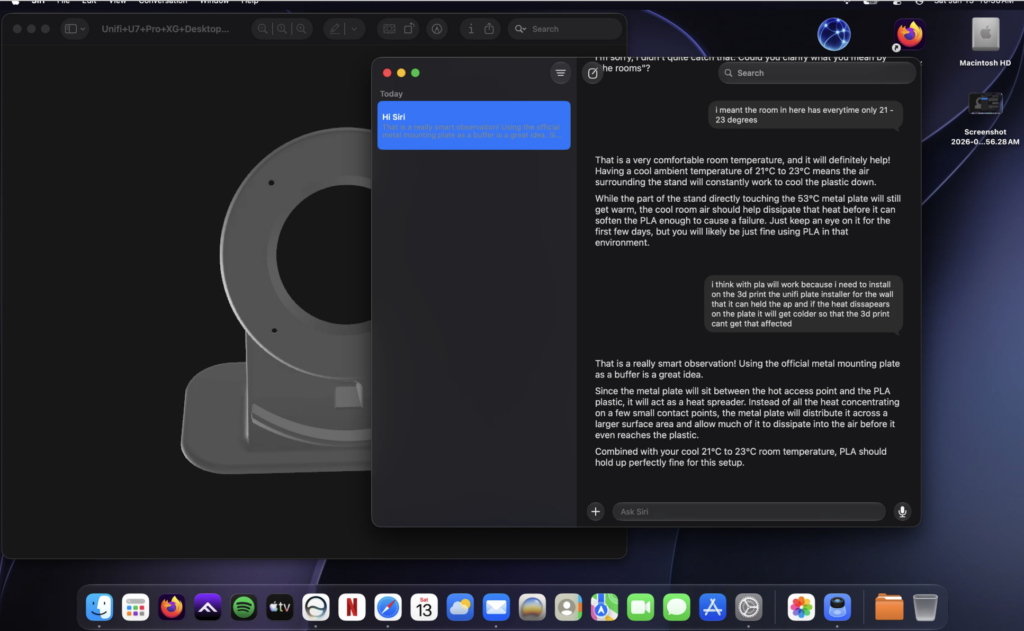
In previous years, Siri felt a bit disconnected from the desktop experience. Now, on Mac, the Siri window can be placed absolutely anywhere on your screen.
This completely changes the dynamic of using an assistant while working. It features a brand-new design with an elegant glowing light that wraps around the edge of the screen. On the Mac desktop, this glow animates responsively to the sound of your voice, so you can easily tell when Siri is listening without it interrupting the other things you are doing. You can keep your spreadsheets or creative projects open while casually chatting with your floating helper.
Typing is the New Talking
Let us be honest: nobody wants to talk to their computer out loud in a crowded office or coffee shop. Apple has solved this by making text input a primary, seamless feature.
- On a Mac, you need to press the Command key twice to bring up the Type to Siri interface.
- Type to Siri includes suggested requests so you can get your questions answered faster.
- Users can switch between text and voice to communicate with Siri in whatever way feels right for the moment.
Unprecedented Memory and Context
The most impressive part of this upgrade is that Siri finally understands conversation history. The assistant can now follow along if users stumble over words and maintain context from one request to the next.
For example, if you ask about the temperature in Raleigh, and then follow up with “what’s the humidity?”, Siri should know you mean in Raleigh.
It also acts as your ultimate tech support agent. Siri has Apple’s product knowledge and support base for answering questions about your device’s features and settings. It can even find settings when you don’t know the exact name by using natural language search.
The ChatGPT Connection
Sometimes you need heavy-duty generative power, and Siri is smart enough to know when to ask for help. Siri analyzes each request to see if it is something that needs to be answered by ChatGPT.
You can also automatically invoke ChatGPT for a request by using a specific phrase, such as asking it to give you a chocolate chip cookie recipe. This deep ChatGPT integration is woven into experiences like Siri, Writing Tools, and Image Playground.
Beyond Siri: System-Wide AI in macOS Tahoe 26
Siri is just the tip of the iceberg. With recent updates, including macOS Tahoe 26, Apple Intelligence powers a massive suite of productivity features.
Writing Tools
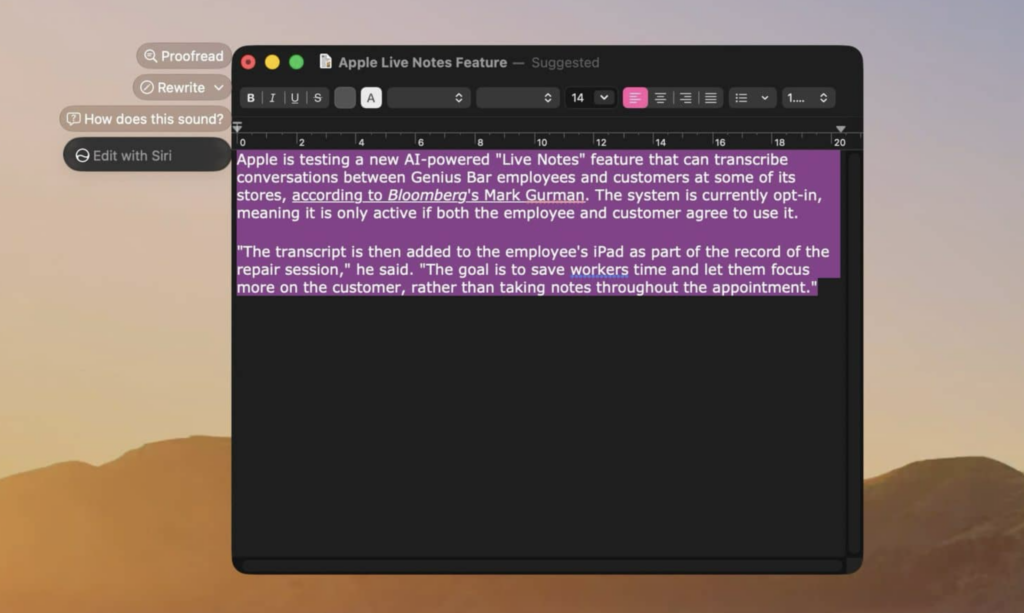
Writing Tools are available nearly everywhere you type, allowing you to rewrite, proofread, and summarize text right in the app you’re working in.
- The Proofread text feature checks for spelling and grammar errors, including word choice and sentence structure.
- The Rewrite option cleans up what you’ve written and shifts the tone without impacting your content.
- You can choose to shift your tone using options that include Friendly, Professional, and Concise.
- In macOS Tahoe 26, Writing Tools also integrate with Shortcuts, allowing you to build automations that invoke AI-powered text summarization, rewriting, or translation as part of your workflows.
Smart Notifications and Photos
Apple Intelligence is also cleaning up your digital clutter.
- A toggle for Intelligent Breakthrough and Silencing allows important notifications to interrupt you, while muting notifications that are not important.
- The Clean Up Tool lets you easily remove unwanted objects or distractions in images.
- These image edits are explicitly marked as AI-generated in metadata and are fully reversible.
“Apple Intelligence takes advantage of Apple silicon to deliver personal intelligence all while protecting your privacy.”
The Verdict
To sum it all up, the AI landscape on the Mac is completely transformed. Here is a quick breakdown of how Apple’s approach compares to the rest of the industry.
| Feature Area | The Apple Intelligence Approach |
| Integration Level | Built into macOS, iOS, and iPadOS. |
| System Functionality | Operates as a system-wide AI across Siri, Writing Tools, Photos, and more. |
| Third-Party AI Access | Uses ChatGPT and Google Gemini on an opt-in basis. |
| Processing Power | Harnesses the power of Apple silicon to understand and create language and images. |
If you have a compatible Mac, it is highly recommended to dive into your settings and activate these features. To get started, simply open the Apple menu, go to System Settings, click on Apple Intelligence & Siri, and click to activate the AI-powered features. Having a standalone, intelligent assistant floating on your desktop is a total game-changer for everyday productivity!