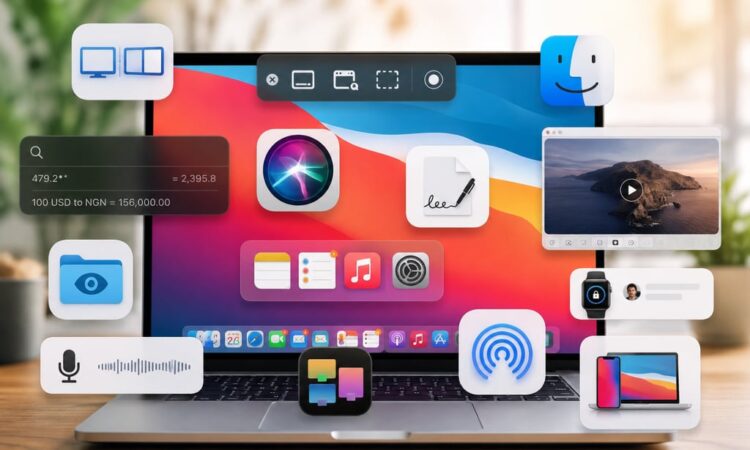
You’ve owned a Mac for years. You know how to open Finder, you’ve mastered Command+C, and you can switch between apps in your sleep. But here’s the thing — your Mac has been quietly sitting on a goldmine of features you’ve probably never touched. With macOS 26 Tahoe now in full swing, there are more hidden gems than ever.
Here are 25 tricks that will make you feel like you just met your computer for the first time.
The Spotlight Glow-Up
1. Search your open Safari tabs from Spotlight
You don’t need to click through 47 browser tabs to find what you’re looking for. Open Spotlight (Command+Space), type a search term, and your open Safari tabs appear directly in the results.
2. Search inside websites without opening a browser
Type a website name like “Amazon” or “Etsy” in Spotlight, press Tab, and then type your search query. Spotlight sends it straight to that site. It’s like having a universal search bar for the whole web.
3. Scroll through your Spotlight search history
Like Terminal, Spotlight in macOS Tahoe now remembers your past searches. Open it and press the up arrow key to cycle back through previous queries — a quiet little time-saver.
4. Use filter tabs in Spotlight searches
After typing a search term, filter buttons appear at the top of the results. Click one (like “Mail” or “Messages”) to narrow results by source. Or type the app name, press Tab, then type your query — even faster.

The Screenshots You Didn’t Know You Could Take
5. The full screenshot toolkit: Command+Shift+5
Most people know Command+Shift+3 (full screenshot) and Command+Shift+4 (selection). Fewer know about Command+Shift+5, which opens a full toolbar with screen recording, timed captures, and save-destination options.
6. Copy to clipboard instead of saving a file
Hold Control while taking any screenshot and it goes straight to your clipboard instead of cluttering your desktop. Paste it wherever you need it.
| Shortcut | What it does |
| Command+Shift+3 | Full screenshot (saved to desktop) |
| Command+Shift+4 | Selection screenshot |
| Command+Shift+5 | Full screenshot/recording toolbar |
| Control + any of the above | Copies to clipboard instead |
Finder, But Make It Fast
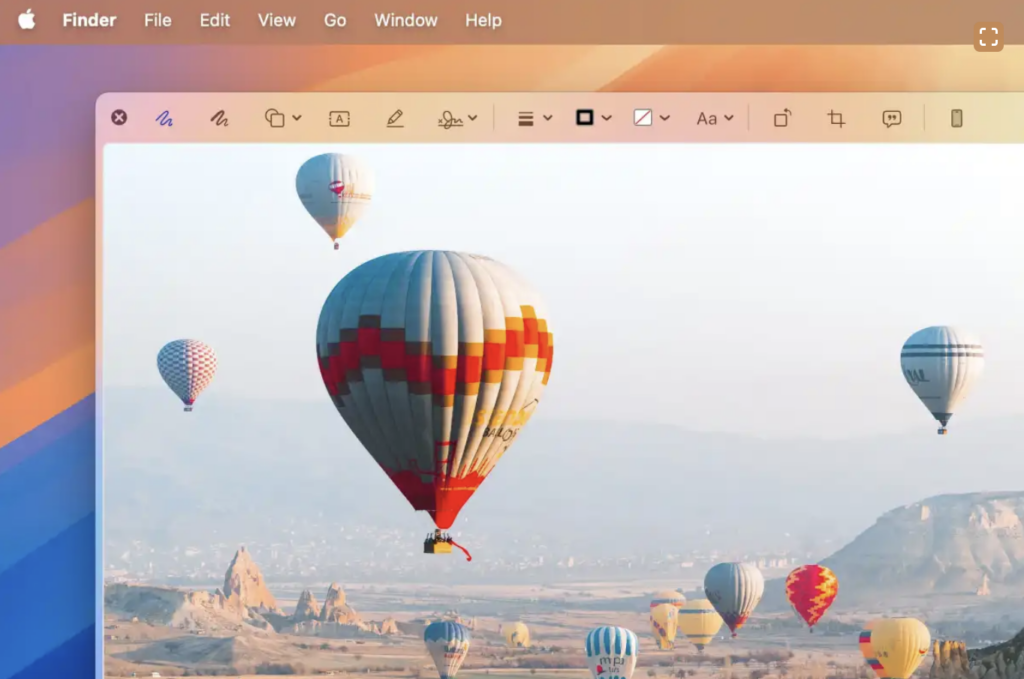
7. Quick Look editing
Select a file in Finder and press the spacebar to preview it. You probably knew that. What you may not know: in the Quick Look preview, you can use Markup tools to annotate, sign, or rotate PDFs and images — without opening a single app.
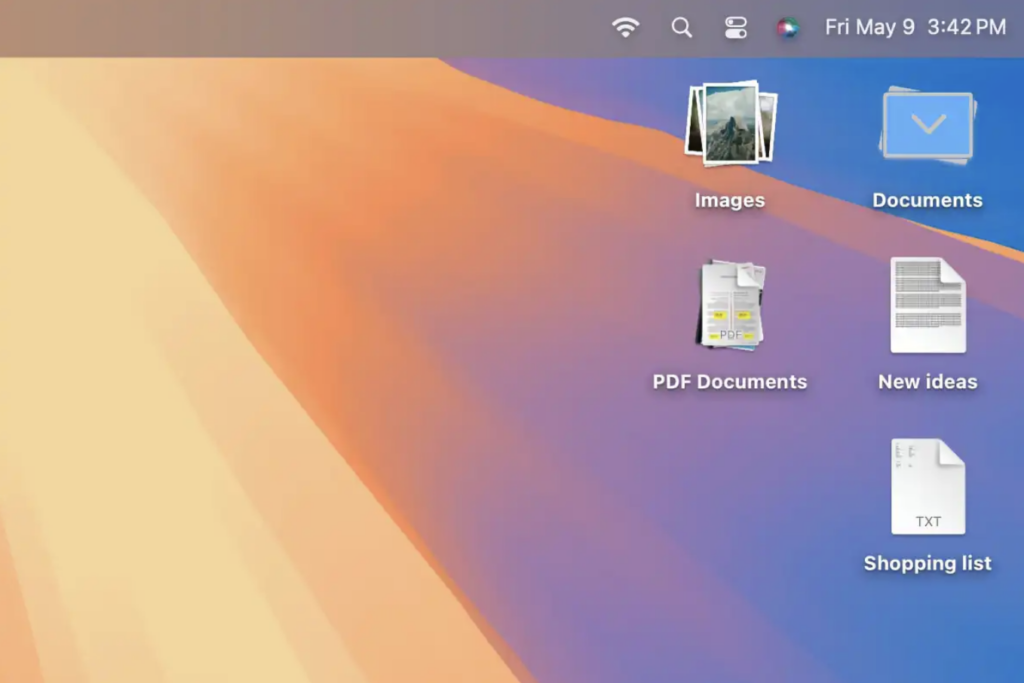
8. Desktop Stacks
Right-click your desktop and choose “Use Stacks.” macOS automatically groups related files into tidy piles — screenshots together, PDFs together, downloads together. Your chaotic desktop, instantly decluttered.
9. Smart Folders
A Smart Folder isn’t a real folder — it’s a saved search. Go to File > New Smart Folder in Finder and set your criteria (file type, date modified, tags). macOS populates it automatically in real time. No more hunting for “that PDF from last month.”
10. Color tags for faster navigation
Right-click any file or folder and assign a color tag. Then search by color in Finder or sort tagged files to the top. Simple, visual, and genuinely faster than folders-within-folders.
Trackpad Tricks Worth Enabling
11. Three-finger drag
This one is off by default, which is a crime. Go to System Settings > Accessibility > Pointer Control > Trackpad Options and enable “Use trackpad for dragging” with three fingers. Now you can move windows by dragging with three fingers — no clicking required.
12. Force Click for instant word lookup
Press firmly on any word in Safari, Notes, or most apps and you get an instant dictionary/Wikipedia lookup. Softer press scrolls, firmer press looks up. Once you know it, you’ll use it constantly.
Desktop and Workflow Organization
13. Virtual desktops with Mission Control
Press F3 (or swipe up with three or four fingers) to enter Mission Control. Hover your cursor at the top of the screen and click the “+” button to add a virtual desktop. Keep email on one, your writing on another, and your music app somewhere out of sight.
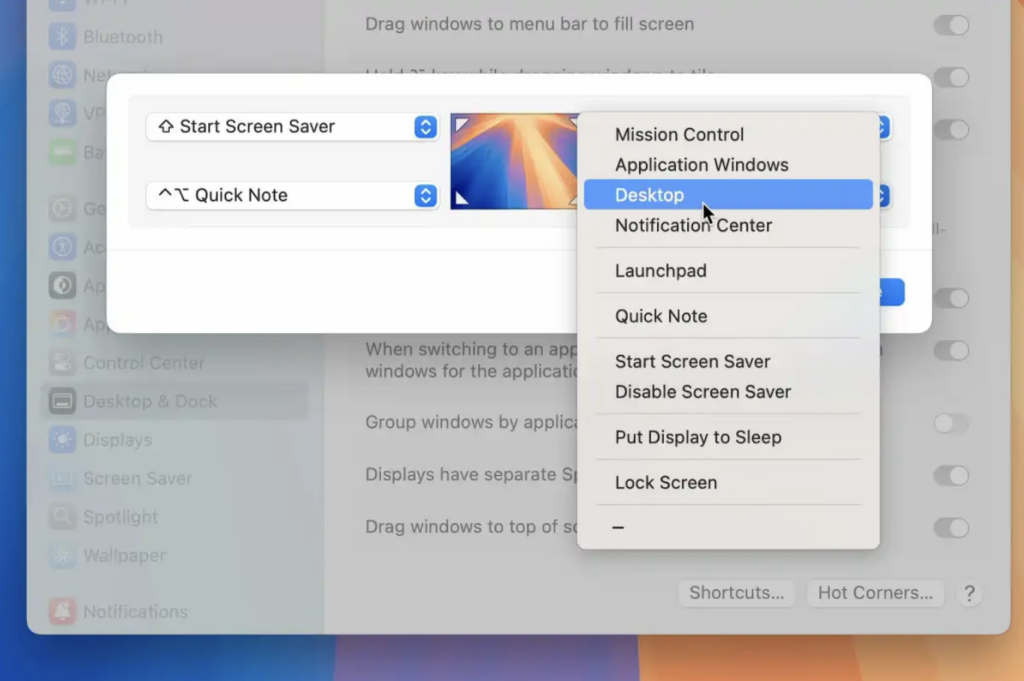
14. Hot Corners
Go to System Settings > Desktop & Dock > Hot Corners. Assign an action to each corner of your screen — like triggering Mission Control, launching the screensaver, or locking your display. Move your mouse to the corner, and it just happens.
15. Universal Control across Mac and iPad
If you have an iPad and a Mac, you can control both with a single keyboard and mouse. Enable it in System Settings > Displays > Universal Control. Drag your cursor to the edge of your Mac screen and it glides onto the iPad. You can even drag and drop files between devices.
macOS Tahoe-Specific Tricks
16. Multiple Control Centers
In macOS 26 Tahoe, you can create more than one Control Center. When editing your Control Center, tap the “+” button to add a second one — give it a custom icon and fill it with a different set of controls. Keep your main one for essentials and a second one for music or display settings.
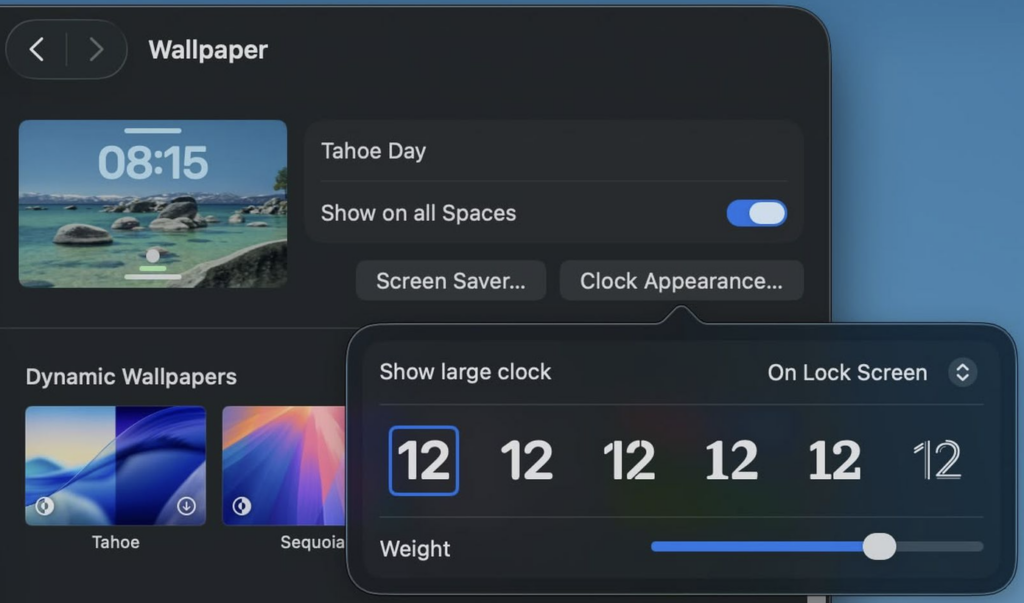
17. Customize your Lock Screen clock
Go to System Settings > Wallpaper > Clock Appearance. You can change the font style and weight of the clock that appears on your Lock Screen. Six font styles are available, with a slider to adjust thickness.
18. Live Activities from your iPhone in your Mac’s menu bar
With iPhone Mirroring enabled, Live Activities from your iPhone (live sports scores, your Uber’s arrival, a flight tracker) now automatically appear in your Mac’s menu bar. Your phone stays in your pocket; the updates come to you.

19. Export Notes to Markdown
Open a note and go to File > Export As > Markdown. macOS Tahoe now lets you export notes as plain .md files — useful for developers, writers, or anyone who moves text between tools.
20. Message backgrounds in the Messages app
Open a conversation in Messages, tap Info, then Backgrounds. You can set a custom photo or a generated image as the background for individual conversations. Practical? Not really. Fun? Absolutely.
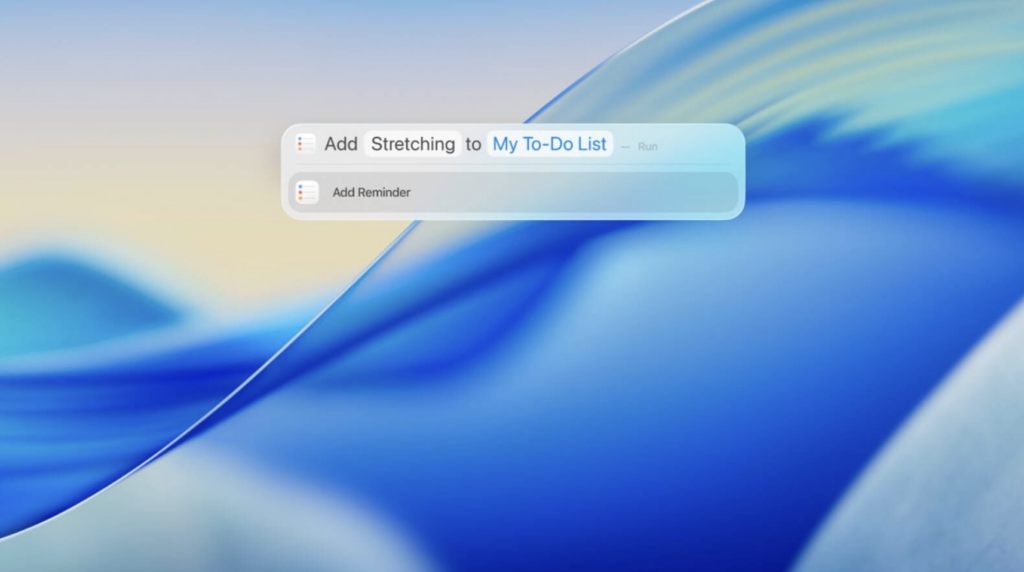
21. Auto-categorize your Reminders lists
Open a Reminders list and go to File > Auto Categorize. Apple Intelligence will sort your items into sections like Clothing, Electronics, and Travel Essentials. Great for packing lists or shopping lists that have gotten out of hand.
The Everyday Magic
22. Shake your mouse to find your cursor
Can’t find your cursor on a busy screen or across multiple monitors? Just wiggle your mouse rapidly side to side. Your pointer temporarily enlarges to an unmistakable size, then returns to normal once you stop. It’s the kind of feature you forget exists until the day it saves you.
23. Text replacement shortcuts
Go to System Settings > Keyboard > Text Replacements. Add a short code (like “@@”) that automatically expands to your full email address. Add your home address, your company name, your signature sign-off. Stop typing the same things over and over.
24. Live Text everywhere
Point your iPhone camera at text — a menu, a whiteboard, a receipt — and Live Text lets you select, copy, and search it directly. On Mac, the same feature works on images in Photos, Safari, and Quick Look. It even works on paused video frames.
25. The Edge Light for video calls
In macOS 26.2 and later, go to your video call settings and look for Edge Light. Your Mac’s display becomes a virtual ring light that illuminates your face in low-light conditions. You can adjust the width and color temperature, and it can even turn on automatically when the room gets dark.
Final Thought
“The best tools are the ones you already own but haven’t fully explored yet.”
Your Mac is more capable than the average user ever discovers. These 25 tricks don’t require any downloads, subscriptions, or third-party apps — just a few minutes to set them up. Start with two or three that felt immediately useful, build the habit, and then come back for more. You’ve already paid for all of this. You may as well use it.