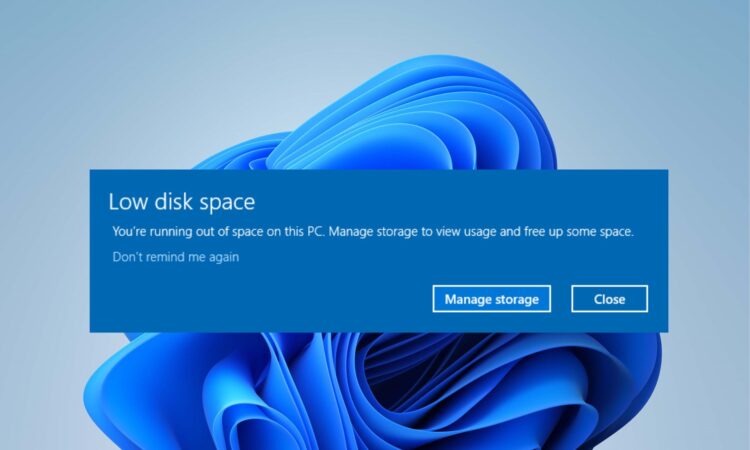
Few Windows warnings inspire quite the same reaction as “You’re running low on disk space.” One minute everything seems fine; the next, your C: drive has somehow eaten nearly all of its storage.
Running low on space can do more than stop you from downloading another game or copying photos. Microsoft notes that insufficient free storage can affect PC performance and make it difficult to install Windows updates.
Fortunately, you usually do not need a mysterious “PC optimizer” promising to clean 47,392 problems you did not know you had. Windows 11 already includes several safer tools for reclaiming storage.
Here are seven good places to start.
First, Check What Is Actually Using Your Storage
Before deleting anything, open:
Settings > System > Storage
Windows breaks down storage usage into categories such as installed apps, temporary files and other data. You can also use Advanced storage settings to inspect other connected drives.
This is worth doing first because the culprit may be obvious. A 100 GB game is a very different problem from 20 GB of temporary files.
| Storage problem | Good place to start |
|---|---|
| Temporary files | Cleanup recommendations |
| Lots of old apps | Installed apps |
| Huge personal files | File Explorer |
| OneDrive files stored locally | Files On-Demand |
| Previous Windows installation | Temporary files |
| Constantly shrinking C: drive | Storage Sense |
1. Use Windows Cleanup Recommendations
Windows 11 has a built-in feature called Cleanup recommendations.
Go to:
Settings > System > Storage > Cleanup recommendations
Windows can suggest items from categories including temporary files, large or unused files, cloud-synced files and unused applications. It also shows how much space you could recover before you remove anything.
The important word here is “recommendations.” Do not simply select everything because Windows found it.
Check each category first, especially if personal files appear in the list.
2. Turn On Storage Sense
If your storage problem keeps returning, Storage Sense can automate some of the housekeeping.
Storage Sense can remove unnecessary temporary files and delete older items from the Recycle Bin. By default, it runs when Windows detects that the system drive is low on space after you enable it.
You can find it under:
Settings > System > Storage > Storage Sense
You can also choose how often certain files are removed.
One reassuring detail: Storage Sense does not automatically start deleting files from your Downloads folder under its normal settings. Downloads are only managed if you specifically configure Storage Sense to do so.
That is useful because “helpfully deleting everything I downloaded” would be a rather aggressive interpretation of housekeeping.
3. Empty the Recycle Bin
Deleting a file does not necessarily reclaim its storage immediately.
Files sent to the Recycle Bin remain on your drive until the bin is emptied. If you regularly delete large videos, installers or game files, it is worth checking.
Open the Recycle Bin, inspect its contents and choose Empty Recycle Bin when you are certain you no longer need them.
Storage Sense can also automatically remove items that have remained in the Recycle Bin for a specified period.
4. Uninstall Apps and Games You No Longer Use
Modern games can consume tens or even hundreds of gigabytes, so uninstalling one forgotten title may recover more space than deleting months of tiny temporary files.
Open:
Settings > Apps > Installed apps
Look through the applications you actually use and remove those you no longer need.
Cleanup recommendations can also identify unused apps that may be worth reviewing.
Do not randomly remove applications you do not recognize, particularly hardware utilities, drivers or software installed by your PC manufacturer. Search for what an unfamiliar program does before uninstalling it.
5. Move Large Personal Files Elsewhere
Videos, photos, project archives and old downloads can quietly become some of the largest files on a computer.
Microsoft recommends moving large personal files to another storage device when space is limited.
An external SSD or hard drive can be useful for:
- video collections
- old photo libraries
- archived projects
- game recordings
- installation files you want to keep
Before deleting the original copy, open a few files from the external drive and confirm that the transfer worked.
For irreplaceable photos and documents, keeping another backup is also wise. An external drive sitting beside your PC is storage; it should not automatically be considered your only backup.
6. Make OneDrive Files Online-Only
If you use OneDrive, cloud files may also have local copies occupying storage.
OneDrive Files On-Demand allows files to remain visible in File Explorer without permanently keeping the full file on your PC. Microsoft says online-only files do not consume local disk space and download when you open them while connected to the internet.
To reclaim space from a locally stored OneDrive file or folder:
- Find it in File Explorer.
- Right-click it.
- Select Free up space.
The file remains in OneDrive but becomes online-only.
Files marked Always keep on this device are different: Windows keeps local copies so they remain accessible offline.
Use this feature for files you rarely need offline, not the document you plan to open five minutes before boarding a flight.
7. Remove Windows.old, but Only When You Are Ready
After some Windows upgrades, the system keeps the previous Windows installation inside a Windows.old folder.
This exists for a reason: it can allow you to return to the previous Windows version.
Microsoft says Windows normally removes the previous version automatically 10 days after an upgrade. You can delete it sooner through Storage settings, but doing so removes your ability to roll back using those files.
In Windows 11, you can check:
Settings > System > Storage > Temporary files
or use Cleanup recommendations and look for Previous Windows installation(s).
Delete it only after you are confident the upgraded system is working correctly.
What Should You Avoid Deleting?
A good cleanup rule is simple: if you do not know what a system file or folder does, do not manually delete it.
In particular, avoid randomly removing files from Windows, Program Files or other system directories just because they look large.
Instead, use Windows’ built-in Storage tools whenever possible. They provide much more context about what can be removed safely.
A Little Free Space Goes a Long Way
When your Windows PC starts running short on storage, begin with the easy options: Cleanup recommendations, Storage Sense, unused applications and large personal files.
Then consider OneDrive Files On-Demand or old Windows installation files if you need additional room.
Microsoft specifically warns that insufficient storage can interfere with Windows updates, so freeing space is not only about making room for another game or collection of holiday photos.
The good news is that Windows already provides most of the cleanup tools you need. And unlike a suspicious “Ultimate Turbo PC Cleaner 2026” found in an advertisement, they do not need to inform you that your registry is experiencing emotional distress.