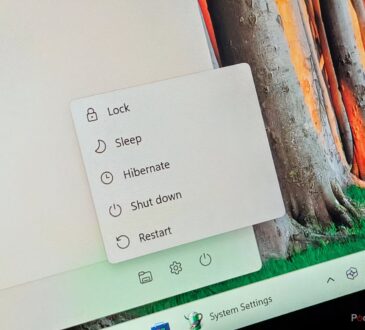

Many computer problems can be solved with a simple restart, but it’s important to understand that signing out and restarting are not the same thing. Logging out only ends your current session, allowing another user to sign in. A full restart refreshes the operating system and clears temporary issues that may be affecting performance.
Another common misunderstanding involves the monitor. Turning the screen off only disables the display—it does not shut down or restart the computer itself. The machine continues running even if the monitor appears completely dark.
People often use the terms “computer” and “processor” interchangeably, but they refer to different things. A computer includes all its hardware components, while the processor is the chip responsible for carrying out calculations and instructions.
Saving important files directly on the desktop is rarely the best approach. Desktops can become cluttered quickly, making files difficult to find. In some organizations, desktop files may not even be included in backup routines. Using designated folders keeps documents organized and easier to protect.

The recycle bin should never be treated as long-term storage. Files placed there are considered deleted and may be permanently removed without warning. Anything important should be stored in a proper folder instead.
The same logic applies to deleted email folders. Some people use them as makeshift archives, but these folders are often emptied automatically. Creating dedicated folders for valuable messages is a much safer practice.
Email is not always the right tool for every situation. Sensitive information, personal data, financial details, and confidential business materials should be handled carefully. Large attachments can also create delivery issues and unnecessary strain on systems. Secure file-sharing solutions are usually a better choice.
Before clicking “Reply All,” consider whether everyone on the original message actually needs your response. Unnecessary replies create inbox clutter and make it harder for others to find important information.
If an email fails to send and is returned with an error, repeatedly pressing the send button rarely fixes the issue. Investigating the underlying problem is much more effective than trying the same action multiple times.
Printing works the same way. If a document doesn’t print, repeatedly clicking the print button may simply create a long queue that eventually produces multiple unwanted copies once the issue is resolved.
The same principle applies when opening programs, files, or web pages. Constantly clicking a button can result in multiple windows launching simultaneously once the system catches up.
Not all connectivity problems are the same. An internet outage, a local network issue, and a malfunctioning website are completely different situations. Sometimes one online service is unavailable while everything else continues working normally.
Technology support teams generally have no control over mobile carrier coverage or public wireless networks. If you’re outside the workplace, issues involving hotel, airport, or home internet connections may be beyond their reach.
When you’re unsure how to solve a problem, reading instructions or researching the issue can save a significant amount of time. Error messages, software guides, and troubleshooting resources often provide answers faster than expected.
Work computers are designed differently from personal devices. Security restrictions, content filters, and access limitations are usually implemented to protect systems, comply with regulations, and ensure reliable performance for everyone.
Whenever you leave your desk, lock your computer. An unlocked machine allows anyone nearby to access files, applications, and accounts using your identity. It only takes a few seconds to secure your session.
Many users overlook the options available through keyboard shortcuts. For example, pressing Ctrl + Alt + Delete provides access to security settings, account management tools, and the task manager.
Different mouse actions can also be useful. Right-clicking, double-clicking, and dragging often reveal additional functions that aren’t immediately obvious through a single click.
If your password suddenly stops working, check whether Caps Lock or Num Lock has been activated. A simple keyboard setting is often the cause of failed login attempts.

Writing passwords on sticky notes or attaching them to your workstation creates a major security risk. Anyone who can see those notes can potentially access your accounts.
Although browser-based password storage is convenient, it also introduces risks. If someone gains access to your unlocked computer, they may be able to sign into multiple accounts without needing to know your credentials.
When requesting technical support, providing the exact wording of an error message is extremely helpful. Specific details allow technicians to diagnose problems much faster than vague descriptions.
Screenshots are one of the most effective troubleshooting tools available. Capturing what you see on your screen often communicates a problem more clearly than a lengthy explanation.
If you contact technical support for assistance, remain available for follow-up questions. Solving many issues requires additional information, and delays in communication can slow the entire process.
Remote support tools can be incredibly useful, but they only work if your computer is powered on and connected. A technician cannot access a machine that is completely shut down.
Not having the latest hardware or software is not always the fault of the technology department. Equipment upgrades often depend on budgets, purchasing cycles, and company priorities.
Patience and courtesy go a long way when working with support teams. Technical staff often handle multiple requests simultaneously and must prioritize issues based on urgency and impact.
Finally, not every last-minute request qualifies as an emergency. Planning ahead whenever possible allows support teams to allocate resources effectively and provide better service for everyone. The more preparation you do in advance, the smoother technology-related projects and requests tend to be.