It is May 8, 2026, and we need to have a serious talk about the computer sitting on your desk. If you boot up your machine today and still see the familiar Windows 10 logo, you are currently navigating a digital minefield.
As you might remember, Microsoft officially pulled the plug on Windows 10 support back in October 2025. No more security patches, no more bug fixes, and absolutely no mercy from cybercriminals. If you ignored the warnings because Windows 11 refused to install on your perfectly good hardware, I completely understand. Microsoft’s strict TPM 2.0 processor requirements stranded millions of healthy computers.
But ignoring the problem is no longer a viable strategy. Every day you connect an unpatched Windows 10 machine to the internet, you are leaving your digital front door wide open to automated malware and zero-day exploits. Here is our candid advice on your three safest options to revive your hardware and protect your data today.
The Zero-Day Reality Check
Before we look at the solutions, I advise you to understand the risk. Hackers hoard vulnerabilities. When an operating system reaches its End of Life (EOL), cybercriminals unleash all the exploits they saved up, knowing the manufacturer will never release a patch to stop them. Running antivirus software on an unpatched operating system is like putting a heavy-duty lock on a house made of cardboard. The underlying structure is compromised. You must change the foundation.
Here is how you fix it.
Option 1: Pay the Microsoft Toll (Extended Security Updates)
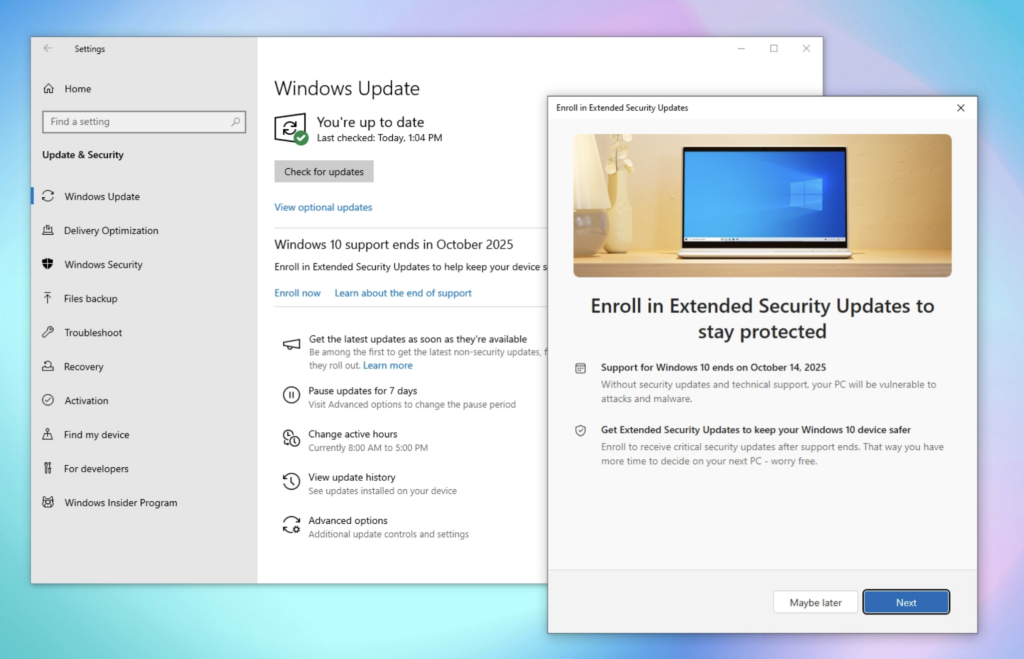
If you absolutely refuse to learn a new operating system, or you run a small business relying on legacy software that only functions on Windows, you can buy yourself a little more time. For the first time in Windows history, Microsoft allowed everyday consumers to purchase Extended Security Updates (ESU), a program previously reserved only for enterprise corporations.
- Our Advice: Go to your Microsoft account settings and enroll your device in the ESU program. It requires an annual subscription fee, but it guarantees your machine will receive critical security patches directly from Microsoft.
- The Catch: This is a temporary financial band-aid. The subscription price doubles every consecutive year you use it, and eventually, even this paid lifeline will run out. Use this option strictly to buy yourself time to save up for a new Windows 11 or AI PC.
Option 2: The Google Rescue (ChromeOS Flex)
Let us be brutally honest about how you actually use your computer. If 90 percent of your digital life happens inside a web browser—checking email, watching Netflix, paying bills, and typing documents in Google Workspace—you do not actually need Windows.
Google created a brilliant, completely free piece of software called ChromeOS Flex. It is designed specifically to be installed on aging, unsupported Windows and Mac hardware. It essentially turns your heavy, slow Windows 10 laptop into a lightning-fast, highly secure Chromebook.
- Our Advice: Grab a blank USB flash drive and use Google’s official Chrome Recovery Utility extension to create a ChromeOS Flex installer. Back up your important local files to a cloud drive, plug in the USB, and completely overwrite your Windows hard drive.
- The Catch: You cannot run traditional Windows desktop executable files (like the full version of Microsoft Office or heavy PC games). However, because the operating system is so lightweight, your seven-year-old laptop will suddenly boot up in seconds, immune to traditional Windows viruses, and your battery life will likely double.
Option 3: Embrace the Penguin (Install Linux Mint)
I know the word “Linux” sounds terrifying. You are probably picturing a hacker in a dark basement typing green code into a black screen. But it is 2026, and the modern Linux desktop is arguably more user-friendly, stable, and visually appealing than Windows.
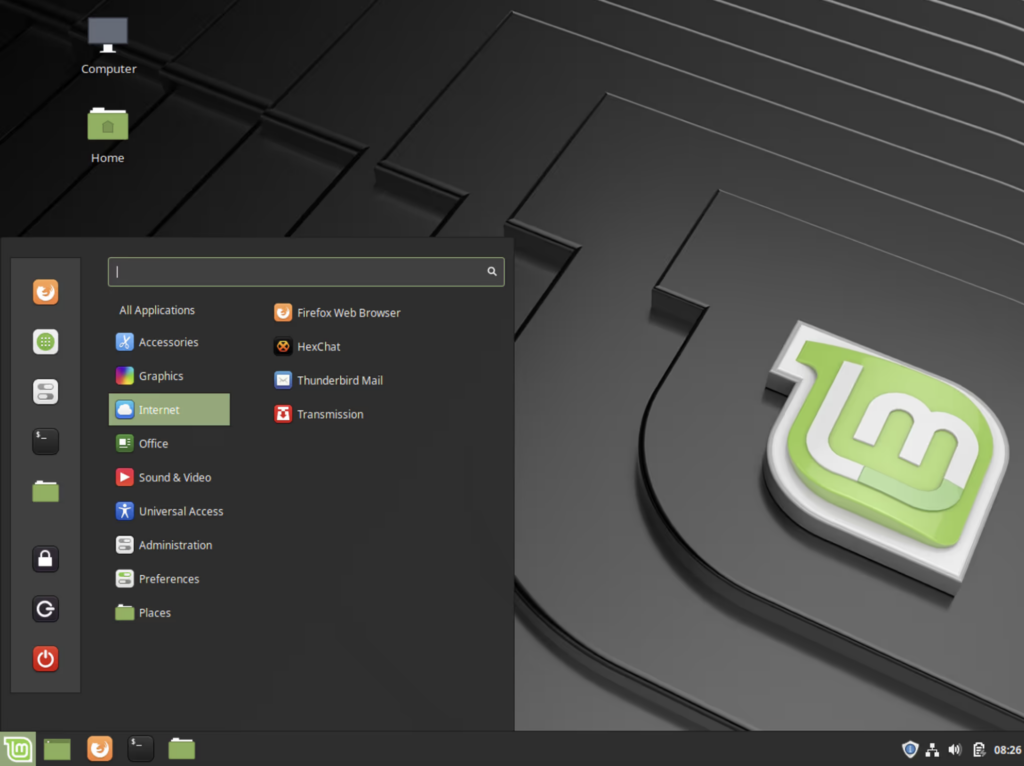
If your computer hardware works perfectly fine, but Microsoft arbitrarily decided your processor was “too old” for Windows 11, the open-source community completely disagrees. A distribution like Linux Mint is entirely free, incredibly secure by design, and visually mimics the classic Windows interface.
- Our Advice: Download the “Cinnamon” edition of Linux Mint. It features a start menu in the bottom left corner, a familiar taskbar, and a desktop layout that requires almost zero learning curve. You get a full, secure operating system complete with free office software and a massive app store.
- The Catch: While it runs all modern web browsers flawlessly, you cannot play multiplayer games that rely on strict Windows anti-cheat software, and you will have to learn the names of new, free software alternatives for your daily tasks.
Which Path Should You Take?
To make your decision as easy as possible, here is a quick breakdown of your escape routes:
| Your Current Situation | The Safest Recommendation | Cost in 2026 |
| Needs legacy Windows apps to work | Microsoft ESU Subscription | Annual Fee |
| Only uses the web browser | Install ChromeOS Flex | Free |
| Wants a full PC without Microsoft | Install Linux Mint | Free |
| Has a massive budget | Buy a new Windows 11/Copilot+ PC | High |
“Your computer hardware did not magically expire in October 2025. Only Microsoft’s willingness to support it did. You still have complete control over your machine.”
Do not let a perfectly good laptop end up in a landfill just because it cannot run Windows 11. Whether you choose to pay the update toll, breathe new life into it with Google’s cloud system, or finally take the plunge into open-source software, our strongest advice is that you must make a move today.
Back up your family photos, pick the path of least resistance for your daily workflow, and permanently get that vulnerable Windows 10 machine off the open internet.