We have all experienced the exact same heart-stopping moment. You finish working at a coffee shop, close your laptop lid, and slide it into your backpack. An hour later, you reach into your bag and immediately realize something is terribly wrong. Your laptop is physically burning hot to the touch, the cooling fans are screaming like a jet engine, and your battery has inexplicably drained from 80% to 15%.
You thought your computer was asleep. Your computer, unfortunately, had other plans.
If you are dealing with a laptop that constantly wakes up inside your bag, you are not alone, and your hardware is likely not broken. You are simply caught in the notorious “Sleep Trap.” Here is the factual breakdown of why this happens to modern laptops, and the practical tip to fix it for good.
The Culprit: Modern Standby
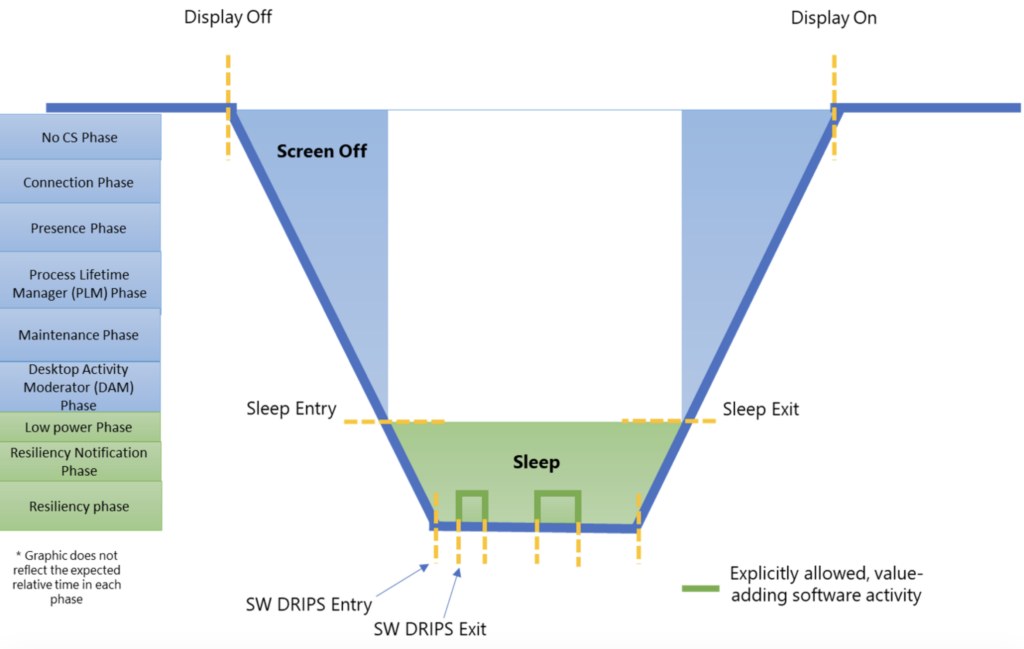
To understand the problem, we have to understand how sleep modes have changed over the last decade. In older computers, putting your machine to “Sleep” meant entering a deep, low-power state. Everything basically shut off except the RAM, which kept your open apps ready for when you returned.
Today, almost all new Windows 11 machines use a completely different system called “Modern Standby” (technically known as S0 Low Power Idle).
The goal of Modern Standby was to make your laptop act exactly like your smartphone. When you lock your phone screen, it does not actually shut down. It stays connected to Wi-Fi, downloads emails, installs updates, and syncs notifications in the background. Modern Standby tries to do the exact same thing for your PC.
“The concept of Modern Standby is brilliant on paper. In practice, putting a fully functioning, heat-generating PC processor into a sealed backpack while it tries to download a gigabyte of background updates is a recipe for a thermal meltdown.”
Why Your Laptop Wakes Up
So, why does your laptop get so hot? The issue usually comes down to a rogue background process, an overeager network adapter, or a poorly optimized driver.
While the laptop is closed, a background app (like a cloud storage sync or a Windows Update orchestrator) will suddenly request processor power. Because Modern Standby allows network connectivity, the laptop briefly “wakes up” to handle the task. If a driver glitches out, the laptop fails to go back to sleep. The processor runs at full speed inside a dark, unventilated bag, generating massive amounts of heat and draining your battery entirely.
Microsoft has acknowledged this widespread issue. In recent Windows 11 updates rolling out through early 2026, they implemented new software “guardrails” that attempt to actively block wake sources if excessive battery drain is detected. However, if you have legacy hardware or a stubborn third-party app, these software patches might not be enough to save your battery.
The Solution: Hibernate is Your Best Friend
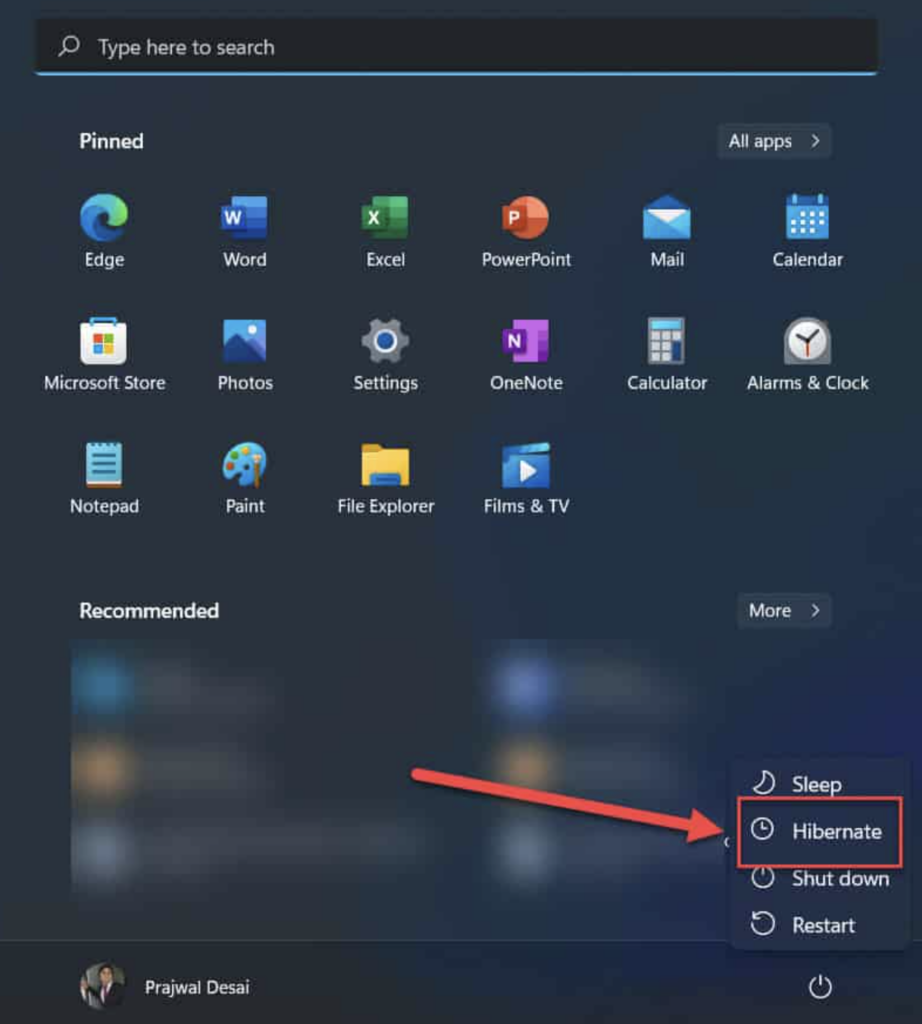
If you are tired of playing Russian roulette with your battery life every time you close your laptop, you need to abandon the Modern Standby system entirely when traveling.
Here is a quick breakdown of your actual power options:
| Power State | What it Actually Does | Battery Drain | Best Used For |
| Sleep (Modern Standby) | Keeps RAM active, maintains background internet connection. | Moderate to High | Stepping away for a quick lunch break. |
| Hibernate | Saves your open apps to the hard drive, completely powers off hardware. | Zero | Putting the laptop in a bag or traveling. |
| Shut Down | Closes all apps, completely powers off hardware. | Zero | End of the workday, clearing system memory. |
To permanently fix the backpack overheating issue, we just need to tell Windows to use “Hibernate” instead of “Sleep” when you close the lid.
How to Change Your Lid Settings in Windows 11
By default, Microsoft hides the Hibernate option to push users toward Modern Standby. Here is the lifehack to bring it back and set it as your default travel mode.
- Open the Control Panel: Do not use the modern Settings app; we need the classic Control Panel. Click your Start Menu, type “Control Panel,” and hit Enter.
- Find Power Options: Navigate to “Hardware and Sound,” and then click on “Power Options.”
- Change the Lid Action: On the left-hand side of the window, click the link that says “Choose what closing the lid does.”
- Unlock the Settings: You will see some grayed-out options at the bottom of the screen. Click the small blue shield icon near the top that says “Change settings that are currently unavailable.”
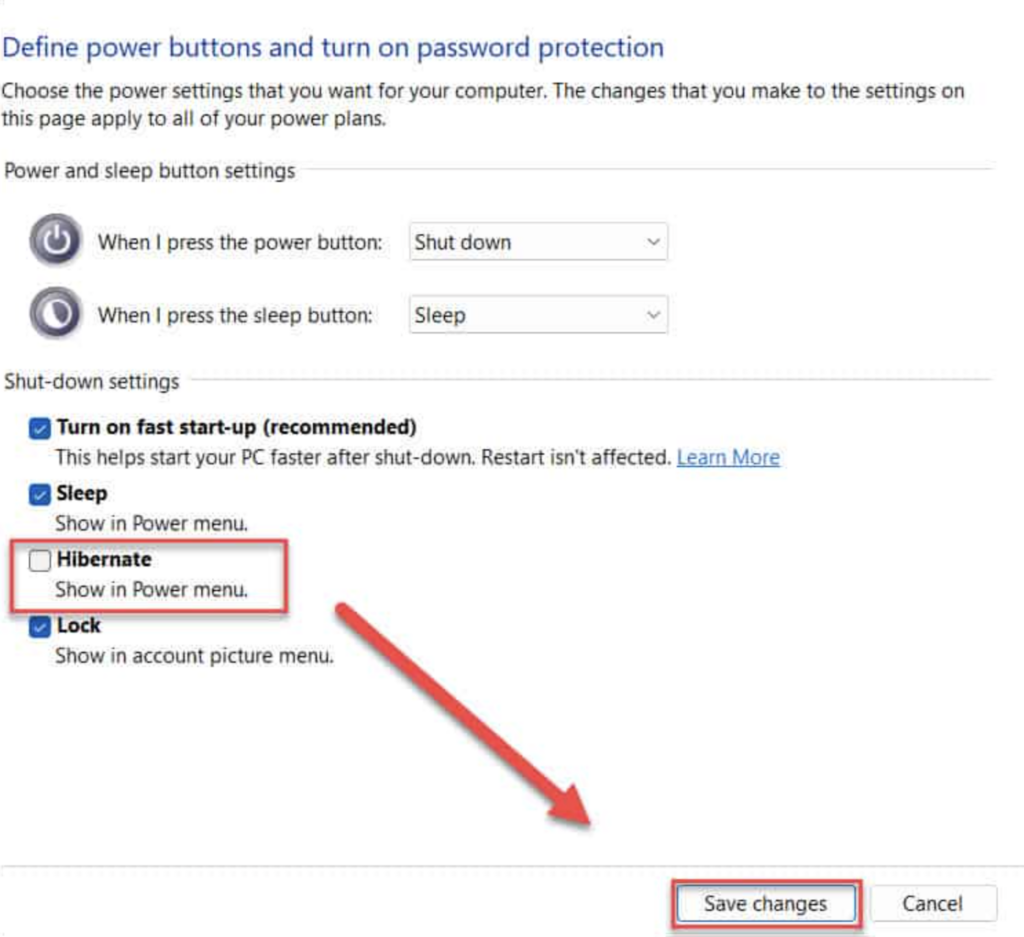
- Enable Hibernate: Check the box next to “Hibernate” to make it show up in your regular Start Menu power button.
- Reassign the Lid: Look at the drop-down menus for “When I close the lid.” Change both the “On battery” and “Plugged in” options from “Sleep” to “Hibernate.”
- Save Changes: Click the “Save changes” button at the bottom.
The Bottom Line
When you close your laptop lid now, it will take roughly three extra seconds for the screen to turn off. That is the system safely taking a snapshot of all your open browser tabs and Word documents and writing them to your hard drive.
When you open the lid later, it might take five seconds to boot up instead of instantly flashing on, but your documents will be exactly where you left them. Most importantly, your laptop will be ice cold, and your battery will be exactly at the percentage it was when you packed it away. Take back control of your hardware and let your computer actually get some rest.