Printers have long been the villain of the computer world. You know the drill: you just want to print a single PDF, but instead, you are forced to download a massive software package, create a mandatory account, and agree to a 40-page terms of service. And after all that, your computer still cheerfully says “Offline.”
But as of April 2026, I have some genuinely good news for you. The nightmare is finally ending. Enter Windows Protected Print Mode (WPP).
Microsoft recently rolled this feature out widely (originating from the Windows 11 24H2 update), and it fundamentally changes how your PC talks to your printer. Here is why you need to enable it today.
What is Windows Protected Print Mode?
For the last 30 years, printing required a “driver” – a piece of third-party software written by the printer manufacturer that tells Windows how to use the device. The problem? These drivers were often bloated, rarely updated, and ran with highly privileged “SYSTEM” access. This led to massive security vulnerabilities, famously dubbed “PrintNightmare,” where hackers could take over entire networks just by exploiting a faulty, outdated printer driver.
Windows Protected Print Mode throws the old playbook out the window. When enabled, it completely blocks your computer from loading third-party print drivers.
Instead, WPP exclusively uses the Internet Printing Protocol (IPP). This is a universal, open standard that allows your computer to discover and print to a device directly, without needing to install any extra manufacturer software.
“By standardizing on IPP… Windows can enable driver-free printing, removing the need for vendor-specific installations and boosting print security.”
The Magic of “Mopria” Certification
You might be wondering: “Will this actually work with my printer?”
The answer is almost certainly yes, as long as your printer is Mopria-certified. Mopria is an industry-wide alliance (backed by tech giants like Canon, HP, and Epson) that created a universal printing standard. Over 120 million printers sold in the last several years are already Mopria-certified.
If your printer has that certification, Windows Protected Print Mode will find it on your network and configure it instantly. No disks, no downloads, and no bloatware.
How to Enable Windows Protected Print Mode
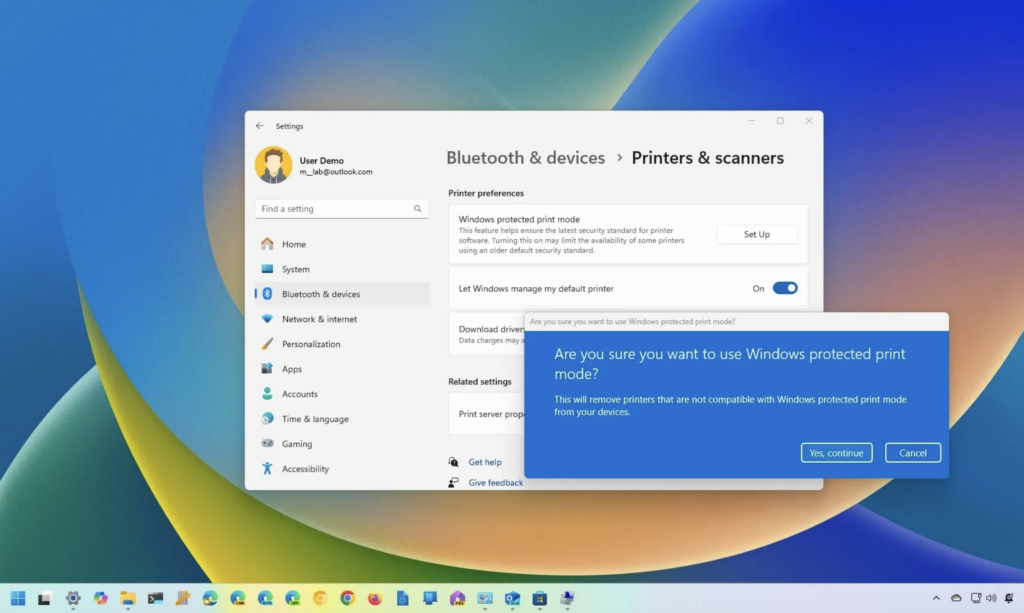
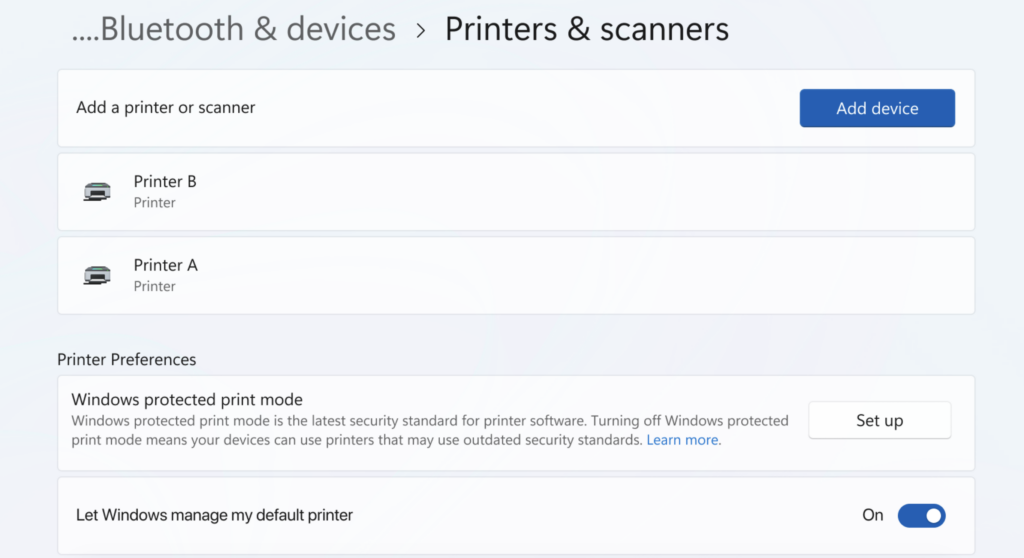
Setting this up on your modern Windows 11 machine takes less than a minute. Here is the step-by-step guide to modernizing your setup:
- Open your Settings app (you can press the
Windows Key + I). - Click on Bluetooth & devices in the left sidebar.
- Select Printers & scanners.
- Scroll down to the Printer preferences section.
- Look for Windows protected print mode and click the Set up button next to it.
- Click Yes, continue on the confirmation prompts.
What Happens Next?
When you click “continue,” Windows will do some digital housekeeping. It will automatically uninstall any legacy, third-party printer drivers currently on your system and remove any incompatible printers. It will then cleanly reinstall your compatible Mopria devices using the secure, modern print stack.
The Catch: Should Anyone Leave It Off?
While WPP is a massive win for 99% of home and small business users, there is a small catch for enterprise users with highly specialized needs.
Because WPP relies on a universal standard, you get all the core features: color selection, duplex (two-sided) printing, paper size, and copy counts. However, if you work in an office with a massive, industrial copier and you rely on highly specific features, like secure saddle-stitch folding, custom watermarks, or advanced tray sorting, the universal protocol might not see those options right out of the box.
| Feature | Legacy Print Driver | Windows Protected Print Mode |
| Setup Process | Lengthy manual software download | Instant, automatic network discovery |
| Security Risk | High (Vulnerable to PrintNightmare) | Extremely Low (Driverless IPP framework) |
| Basic Printing | Yes (Duplex, Color, Copies) | Yes (Duplex, Color, Copies) |
| Niche Hardware Finishing | Yes | Limited (May require manufacturer app) |
Note: Printer manufacturers are actively solving this limitation by releasing lightweight “Print Support Apps” (PSAs) through the Microsoft Store to restore advanced finishing options without compromising the security of WPP.
The Verdict
Unless you are running a commercial print shop with highly specific stapling needs, you should turn on Windows Protected Print Mode right now. It makes your computer significantly safer, frees up storage space from bloated manufacturer software, and turns adding a new Wi-Fi printer from an afternoon-long IT project into a single, satisfying click.
Welcome to 2026. Printing is finally easy.