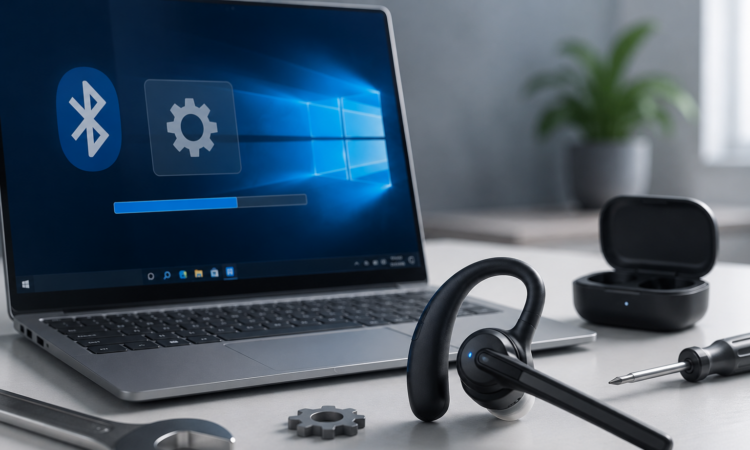
We have all been there. You are about to join an important video call, and suddenly your fancy wireless headphones decide to completely ghost your computer. Or worse, they connect, but you sound like you are speaking through a tin can on the bottom of the ocean.
For years, managing wireless audio on a PC has been an incredibly frustrating experience. But as of mid-July 2026, the era of terrible PC audio is officially coming to a close. Microsoft has recently rolled out massive Bluetooth updates for Windows 11 that fundamentally change how your computer handles wireless connections and microphone inputs.
If you are tired of dropping off meetings or dealing with audio lag, here is exactly how the newest Windows 11 updates fix your biggest Bluetooth headaches, and how you can take advantage of them today.
The End of the “Muted Mic” Panic
One of the most anxiety-inducing parts of remote work is the dreaded mute button mismatch. In the past, if you muted yourself using the Windows interface, your Bluetooth headset might still think the microphone was live, leading to panicked confusion.
With the recent Windows 11 optional update (known as KB5095093), Microsoft has finally introduced complete mute synchronization. Now, when you click the mute icon in your operating system, that state instantly communicates with your headset. Both your computer and your headphones will display the exact same mute status, giving you total peace of mind before you sneeze during a presentation.

Super Wideband: Goodbye, Tinny Audio
Have you ever noticed that your wireless headphones sound amazing when you are listening to music, but the second you activate the microphone for a Teams or Zoom call, the audio quality completely tanks?
This happened because classic Bluetooth used outdated, energy-hungry profiles (like HFP) that drastically compressed the audio frequency. Thanks to the new Bluetooth Low Energy (LE) Audio standard rolling out widely in Windows 11 version 24H2, this is no longer an issue.
The new standard supports “super wideband” fidelity. This means your microphone can capture crystal-clear voice audio at a 32kHz sampling rate—a massive leap from the old 8kHz to 16kHz standard. Even better, recent updates now allow supported PCs to maintain immersive stereo audio playback even while the microphone is active, abandoning the old mono-audio limitation.
“Bluetooth LE Audio is a major step forward, enabling us to enjoy high-quality sound while extending battery life. It finally puts an end to the frustrating compromise between listening to music and using your microphone.”
Shared Audio is Finally Here
Have you ever wanted to watch a movie on your laptop with a friend in a crowded airport? Historically, Windows only allowed one active Bluetooth audio device at a time.
That changes right now. Powered by Bluetooth LE Audio’s broadcast architecture, Microsoft’s newest updates have enabled native “Shared Audio”. You can now stream identical, perfectly synchronized sound from your PC to two different pairs of wireless headphones or earbuds simultaneously.
To use this:
- Open the Quick Settings panel from your taskbar.
- Click the brand-new “Shared Audio” toggle.
- Select your two connected wireless headsets and tap “Start sharing”.
Note: To use this feature, your PC’s wireless card and both pairs of headphones must natively support Bluetooth LE Audio (Bluetooth 5.3 or newer).
Faster Reconnections for AirPods and Beats
If you live in the Apple ecosystem but use a Windows PC for work, getting your AirPods to connect used to be a sluggish, buggy nightmare. The KB5095093 update specifically targets these cross-platform headaches.
Apple AirPods will now appear much faster in Windows pairing mode, and microphone reliability for Beats Studio Pro headphones has been vastly improved. Microsoft also fixed the infuriating delay that used to happen when you woke your computer from sleep or hibernation. Your accessories will now snap back to life and reconnect almost instantly.
Quick Hardware Checklist for 2026
If you want to experience flawless wireless audio, you need to make sure your software and hardware are fully up to date. Here is a quick reference guide on what to check:
| The Requirement | How to Check It |
| Windows Updates | Go to Settings > Windows Update. Ensure you have installed the June or July 2026 patches (like KB5095093 or KB5094126). |
| Bluetooth LE Support | Go to Settings > Bluetooth & Devices. Click on a paired headset and look for a toggle that says “Use LE Audio when available”. |
| Hardware Compatibility | Ensure your headphones and your PC’s wireless card support Bluetooth 5.3 or newer. |
Stop settling for dropped connections and muffled calls. Take five minutes today to run your Windows updates and step into the new era of high-fidelity PC audio!