We have all been there. You are typing up a crucial email, you open the calculator app to do some quick math, and the second you click back to your draft, the calculator vanishes behind a sea of browser tabs. You spend the next minute hunting for it like it owes you money, completely losing your train of thought.
The good news is that you do not have to live like this anymore. If you want to stop wrestling with your open applications, it is time to embrace the magic of Microsoft PowerToys and its absolute lifesaver of a utility: Always on Top.
Here is exactly how to set it up, how to customize it, and why it will completely change the way you use your computer.
What is Microsoft PowerToys?
Before we get to the lifehack itself, you need to know about the toolkit. PowerToys is an entirely free suite of system utilities developed by Microsoft in collaboration with the open-source community. Think of it as a collection of advanced features that should have been built into Windows from the beginning.
If you previously tried PowerToys and found it a bit heavy on your system, it is time to look again. With the massive v0.100.0 update that just rolled out, Microsoft upgraded the entire project to .NET 10. This means the 2026 version of the software has a much smaller footprint on your hard drive and runs significantly faster than older versions.
You can download the suite directly from the Microsoft Store, GitHub, or by using the Windows Package Manager.
The Master Shortcut
Once you have PowerToys installed and running in your system tray, setting up your multitasking masterclass takes about three seconds.
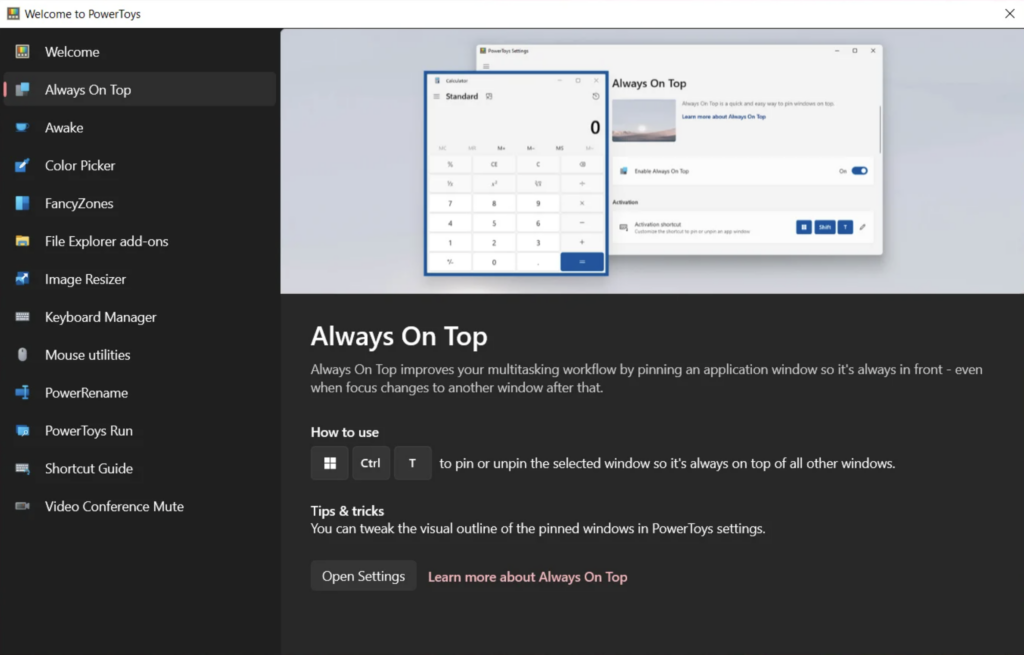
By default, the Always on Top feature is already enabled in the background. To use it, simply click on the specific application window you want to lock to the front of your screen—like a Notepad file or a video player—and press the master shortcut: Windows Key + Ctrl + T.
“The moment you press the shortcut, your selected window is pinned above all other applications. Even if you click away to work on a massive spreadsheet, your pinned window will float persistently in the foreground.”
To unpin the window and return things to normal, just make sure the window is selected and hit the exact same keyboard shortcut again.
Customizing Your Setup
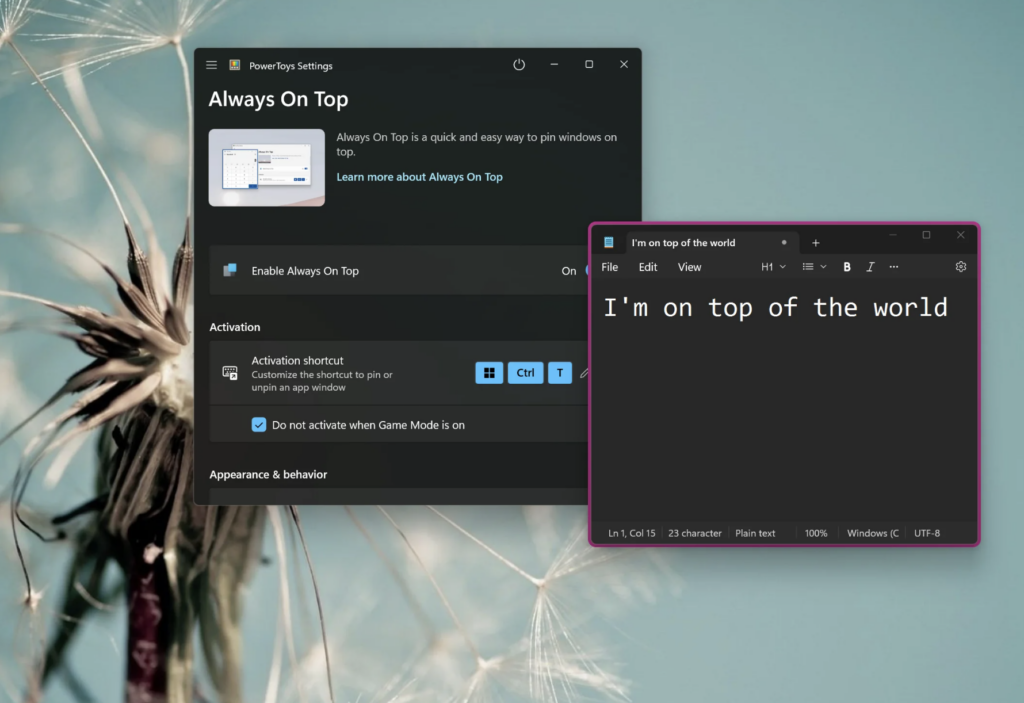
How do you actually know if a window is pinned? Microsoft built in some brilliant visual and audio cues. By default, when you activate the shortcut, your computer will play a subtle chime, and a thick colored border will wrap around the pinned application.
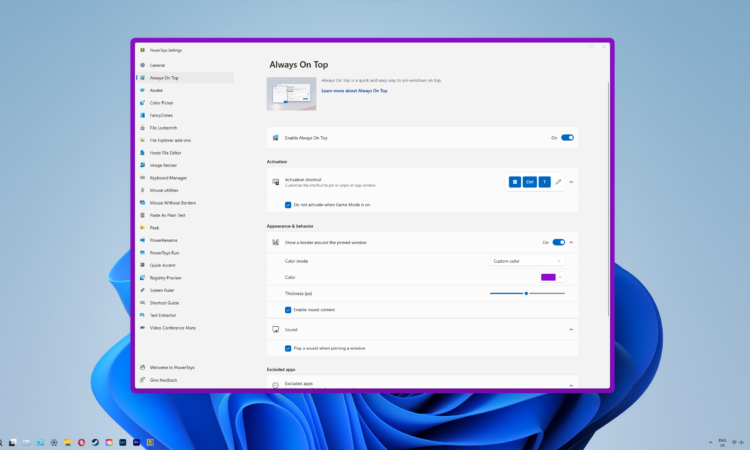
However, you might not want a glowing border distracting you while you work. If you open the PowerToys Settings menu and navigate to the “Always on Top” tab, you have total control over how the feature behaves:
| Setting | What It Does for Your Workflow |
| Border Appearance | You can completely disable the colored border, change its thickness, adjust its opacity, or enable rounded corners for a sleeker look. |
| Game Mode Integration | When toggled on, this prevents the shortcut from accidentally activating while you are playing full-screen PC games. |
| Excluded Apps | You can type in the names of specific programs (like your web browser) that you never want to be accidentally pinned, preventing multitasking disasters. |
| Custom Shortcuts | If Windows Key + Ctrl + T feels clunky to your fingers, you can easily map the activation to any other key combination. |
Interestingly, if you are running Windows 11, the feature also adds a handy option to your right-click context menu. You can simply right-click the title bar of any open application and select “Always on Top” with your mouse if you forget the keyboard shortcut.
Why You Need This Right Now
Once you build the muscle memory for this shortcut, you will wonder how you ever used a computer without it. Instead of constantly dragging windows around to fit them side-by-side, you can simply float your most critical tools over your main workspace.
Here are just a few ways this changes your daily workflow:
- Data Entry: Pin a small reference document or an email to the corner of your screen while you fill out a massive spreadsheet in the background.
- Video Calls: Pin your Zoom or Teams video feed to the top so you can still see your colleagues’ reactions while you are presenting a slideshow or taking notes in another app.
- Creative Reference: If you are drawing or designing, pin a reference image directly over your digital canvas so you do not have to keep looking at a second monitor.
Stop letting your open applications dictate how you work. Take twenty seconds to install PowerToys today, memorize the shortcut, and take permanent control of your desktop.