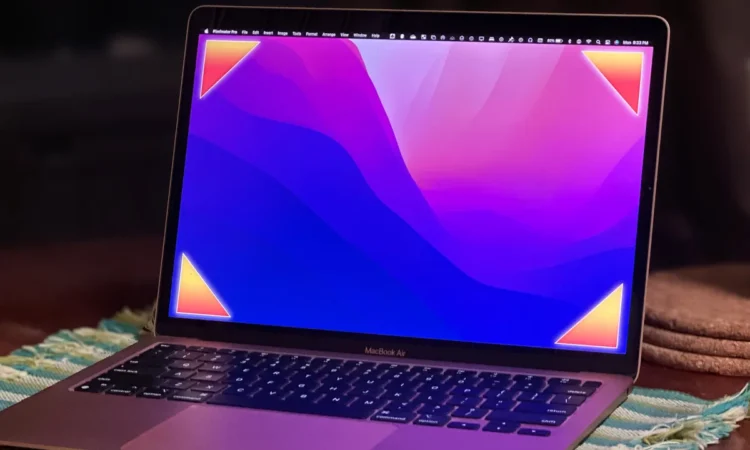
Modern computing in 2026 is all about efficiency, yet many Mac users still manually dig through menus just to lock their screens or open a fresh note. If you want to feel like a digital magician, it is time to enable “Hot Corners.” This built-in macOS feature allows you to trigger system actions simply by flicking your cursor to one of the four corners of your display.
Here is how to set up, customize, and master this hidden gem without accidentally sending your windows flying across the room.
What Exactly Are Hot Corners?
The concept is beautifully simple. Apple’s macOS allows you to assign a specific system action to the top-left, top-right, bottom-left, and bottom-right corners of your screen. When your pointer reaches that exact corner, the action fires instantly.
Think of it as turning the edges of your monitor into massive, invisible buttons. Many users find there is something incredibly satisfying about bringing up commonly used functions with a swift cursor movement rather than hunting for an icon.
How to Set Up Hot Corners in macOS
Activating this feature takes less than a minute. Whether you are running macOS Sequoia or a recent earlier version, the setup process is entirely straightforward:
- Go to the System Settings app on your Mac.
- In the left sidebar, click on Desktop & Dock. You may need to scroll down slightly to find it.
- Scroll down to the bottom of the main menu and click the Hot Corners button.
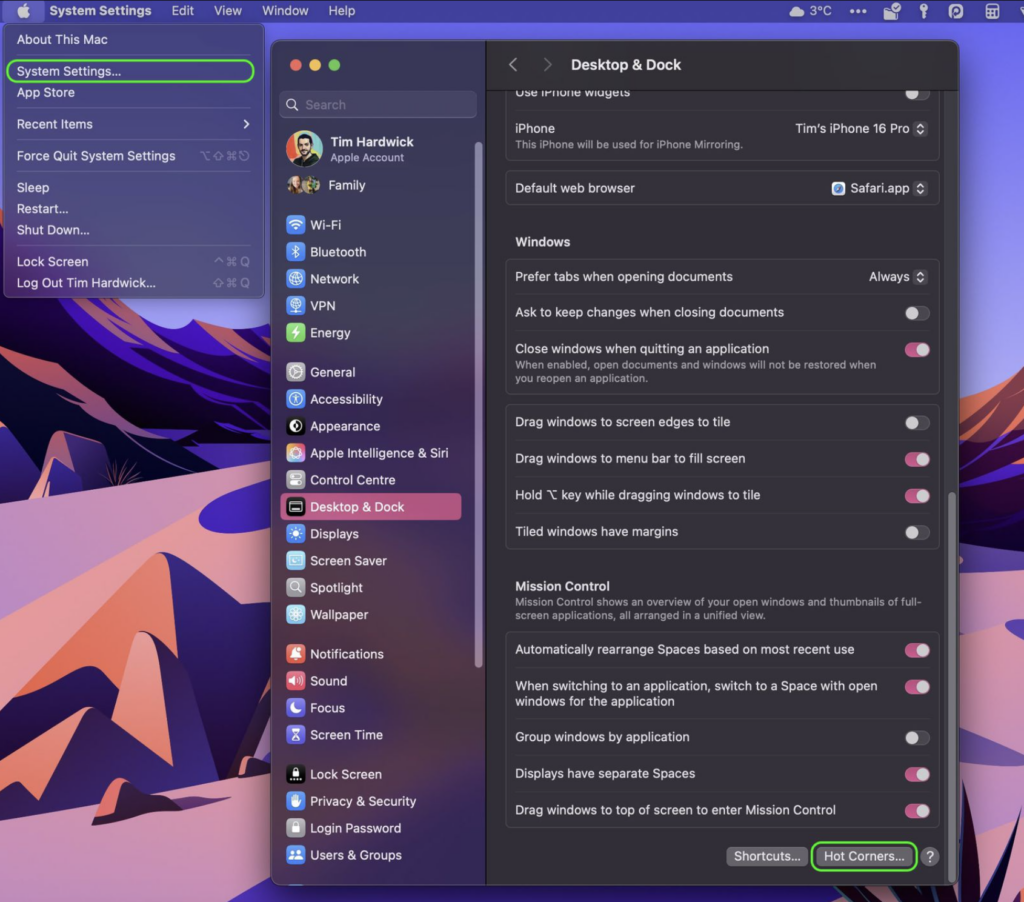
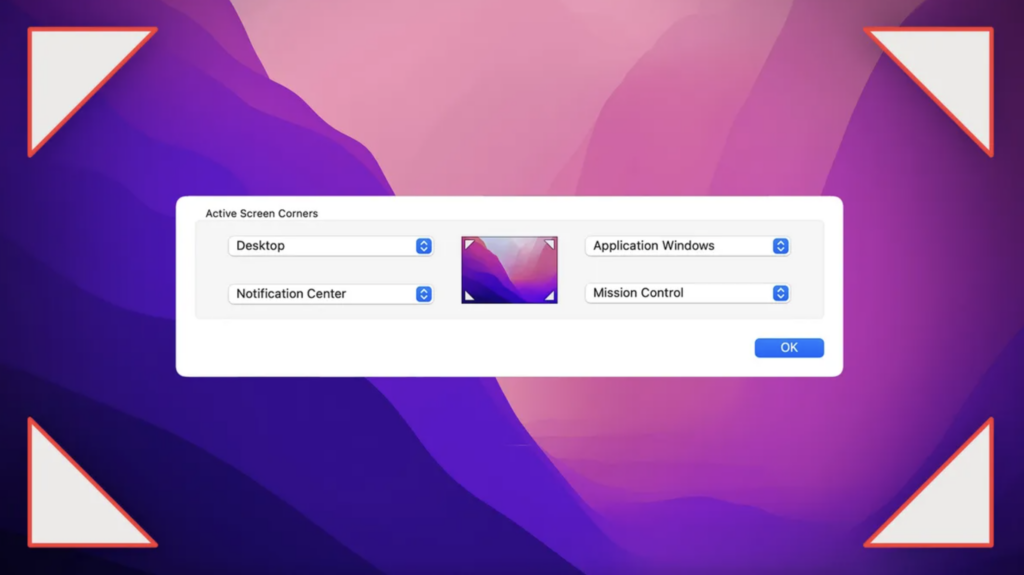
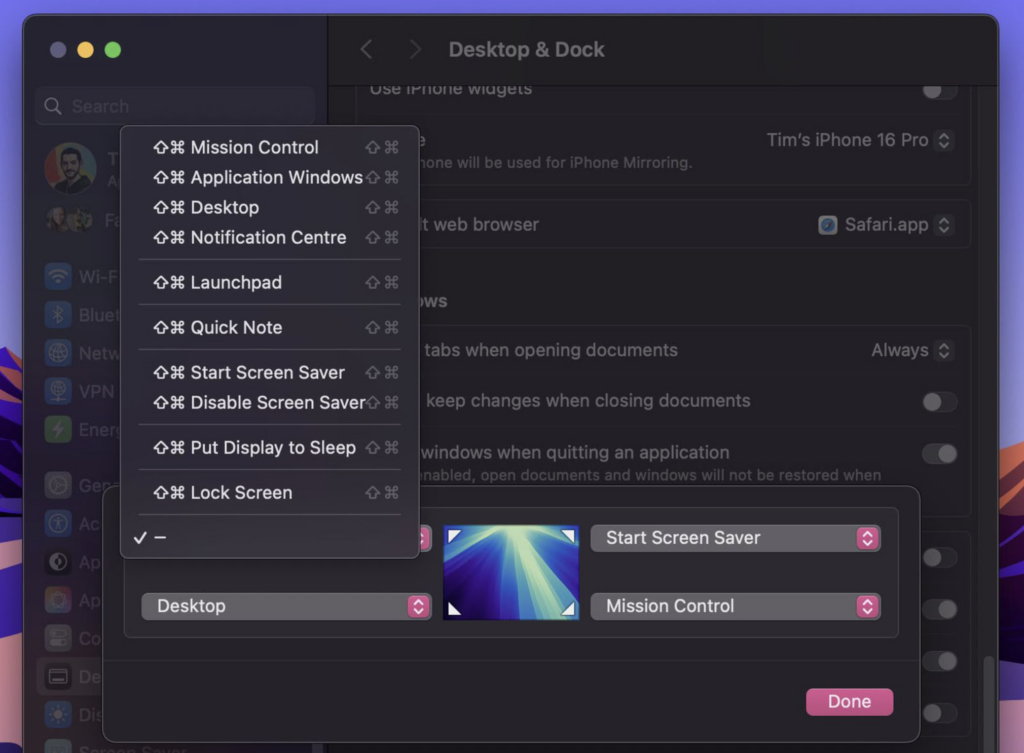
- A dialog box will appear showing a drop-down menu corresponding to each of the four screen corners.
- Select your desired option, such as Notification Center or Apps, from the pop-up menu for any corner.
- Click Done to save your preferences.
The Best Actions to Assign
Because macOS offers a variety of functions, choosing the right layout can drastically speed up your workflow. By default, Apple often sets the bottom-right corner to Quick Note, so you can easily jot down your thoughts at any time.
If you are looking to build a highly efficient “Power User” setup, consider this recommended layout:
| Corner | Recommended Action | Why It Works |
| Top-Left | Mission Control | Allows you to quickly see every open application window separated out at a glance. |
| Top-Right | Application Windows | Instantly brings up all the open windows strictly for your currently active app. |
| Bottom-Left | Desktop | Hides all your open applications so you can easily grab or drop a file directly on your desktop. |
| Bottom-Right | Lock Screen | The absolute fastest way to secure your Mac from prying eyes when walking away from your desk. |
The “Pro Hack”: Taming Accidental Triggers
There is one very common reason some users turn Hot Corners off after a few days of use. It is incredibly easy to accidentally brush your mouse against the edge of the screen when working, especially on a smaller MacBook screen. This can result in application windows flying all over the place, or your computer suddenly locking while you are just trying to click a browser tab.
Thankfully, there is a brilliant, built-in workaround that makes the feature foolproof: modifier keys.
You can instruct your Mac to only trigger the Hot Corner if you are simultaneously holding down a specific key on your keyboard.
How to apply a modifier key
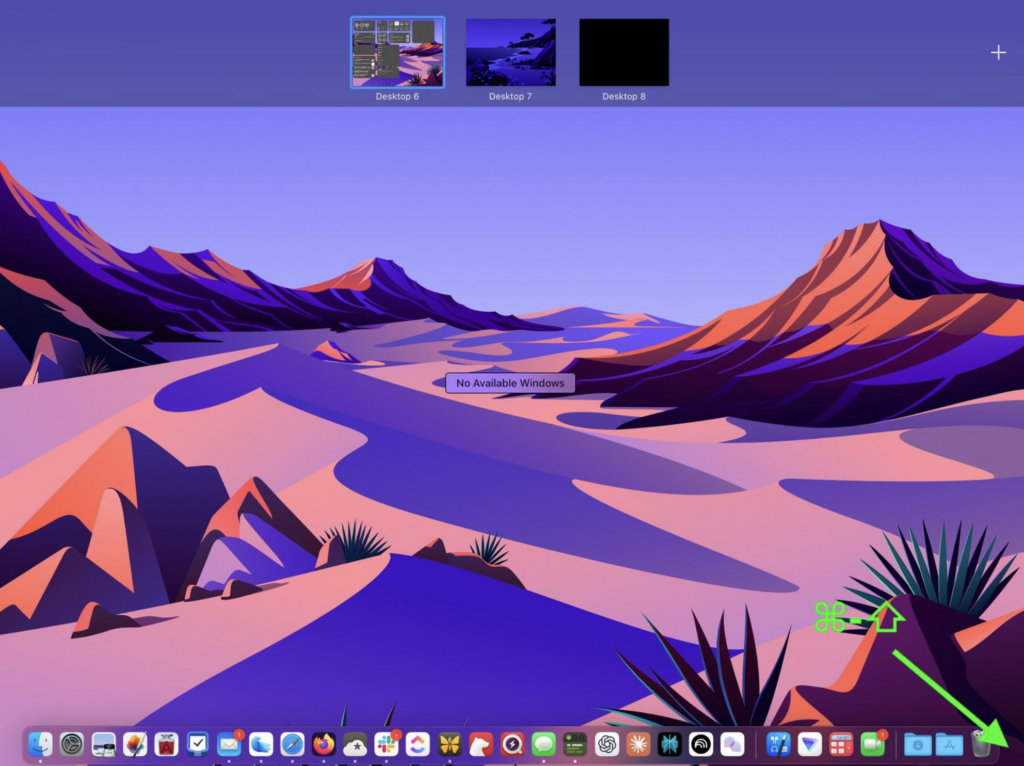
When you are in the Hot Corners setup menu, do not just click the drop-down list normally. Instead, press and hold the Command, Shift, Option, or Control key (or a combination of these keys) while viewing the pop-up menus.
If you select an action while holding the Command key, for instance, the menu will update to show that specific symbol next to the action name. Now, the next time you use that Hot Corner, you must hold down your chosen modifier key as you move the mouse cursor towards the corner. If you do not hold the key, the action simply will not work by design, completely eliminating accidental triggers.
Advanced Uses
As you get comfortable, you can start integrating Hot Corners into deeper workflows.
- Security Delays: You can use a corner to activate your Screen Saver, which acts as a lock with a delay if your Mac is set to require a password shortly after the screen saver begins.
- Accessibility Integrations: Hot Corners can also tie directly into the macOS Accessibility Keyboard, allowing users with mobility needs to trigger “Dwell” actions (like pausing or showing the home panel) simply by resting their pointer in a corner.
By dedicating a few minutes today to configuring your corners, you will save yourself thousands of unnecessary trackpad swipes in the future. Go ahead and throw your cursor into the corner – your workflow will thank you.