Remember the good old days? You know, back in 2022, when you would type “how to unclog a drain” into Google, and it would give you… a list of websites?
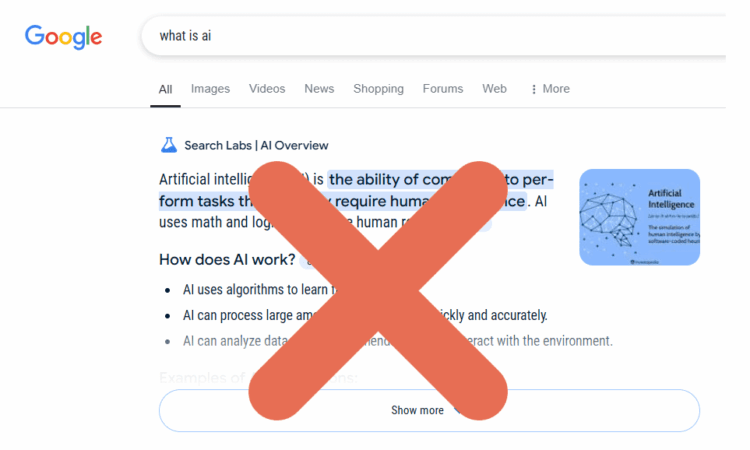
In 2026, that feels like a distant memory. Now, before you can see a single human-written article, you have to scroll past an “AI Overview” – three paragraphs of robot-generated text that sometimes tells you to put glue on your pizza (okay, they mostly fixed that, but you get the point).
If you are tired of the “slop” and just want your ten blue links back, you are not alone. “AI fatigue” is the biggest tech mood of the year. The bad news? Google still hasn’t added a simple “Turn Off AI” switch in the settings.
The good news? We have hacks. Here is how to reclaim your browser in 2026.
1. The “Web” Filter (The Official Way)
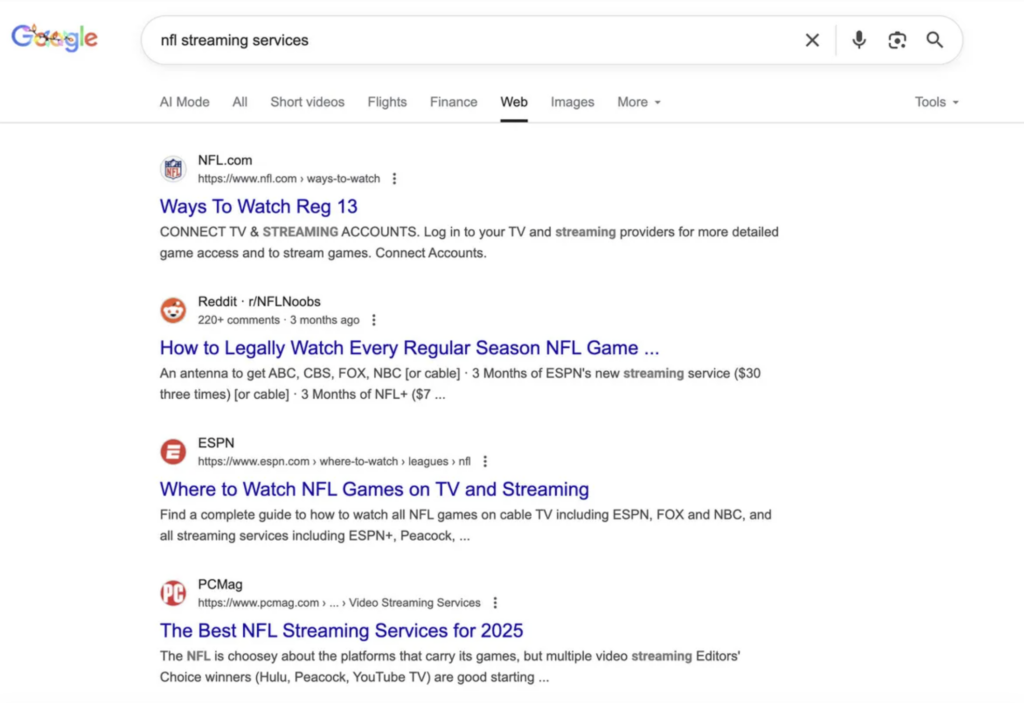
If you only want to escape the AI occasionally, Google actually gave us a dedicated escape hatch – they just hid it.
It’s called the “Web” filter. It strips away everything except text-based links. No AI, no shopping widgets, no “People Also Ask” boxes. Just the internet as it looked in 2010.
How to use it:
- Do your search.
- Look at the tabs under the search bar (Images, News, Videos).
- You probably won’t see “Web” there. Click “More”.
- Select “Web” from the dropdown.
The Downside: You have to do this every. Single. Time. It’s annoying, but it’s the only “official” method that doesn’t require tinkering.
2. The “udm=14” Trick (The Permanent Fix)
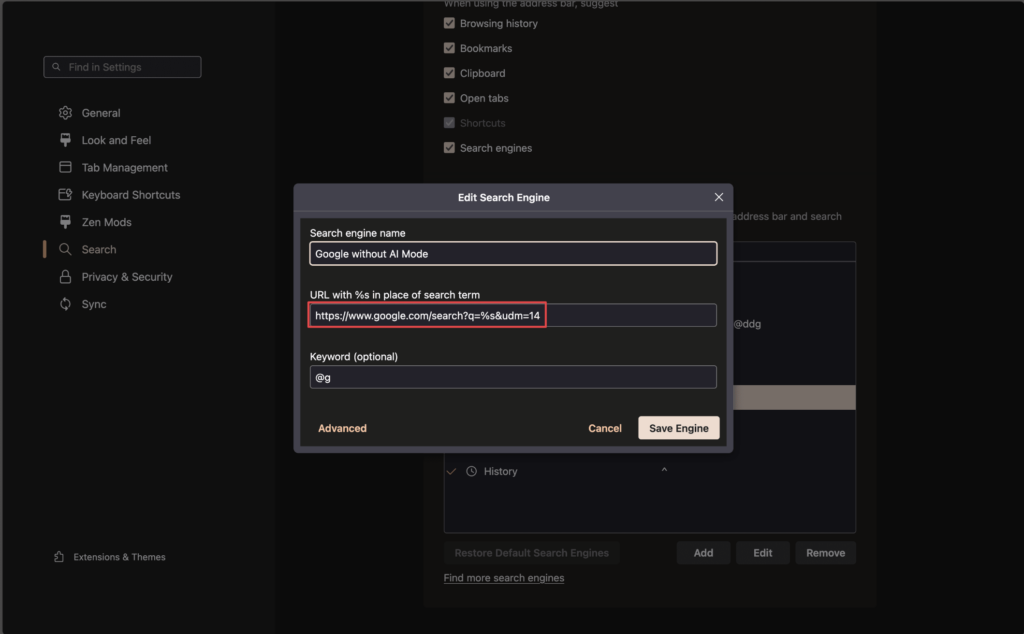
This is the holy grail of 2026 lifehacks.
Tech sleuths discovered that adding a tiny piece of code (&udm=14) to the end of a Google URL forces the “Web” filter to activate automatically. You can actually trick your browser into applying this code for every search you do, effectively banning the AI Overview forever.
Here is how to set it up in Chrome, Edge, or Brave:
Step-by-Step Guide:
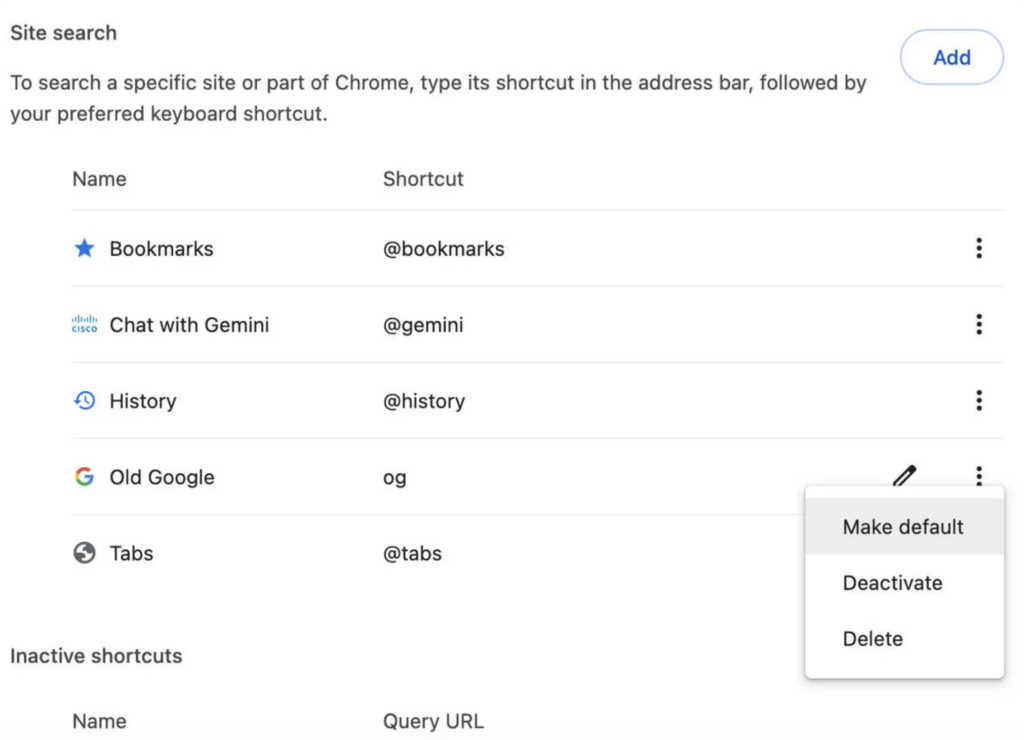
- Open Settings: Go to your browser settings and find “Search engine” or “Manage search engines”.
- Add New: Click “Add” (or “Add search engine”).
- Fill in the fields:
- Name: Google (No AI)
- Shortcut: @web
- URL: https://www.google.com/search?q=%s&udm=14
- Make Default: Find your new “Google (No AI)” entry in the list, click the three dots, and select “Make default”.
Now, whenever you type in your address bar, you get pure, unadulterated links. It’s like time travel, but faster.
3. Extensions: The “Set It and Forget It” Option
If messing with URL codes sounds too technical, the community has your back.
As of January 2026, the most popular tool is simply called “Hide Google AI Overviews”. It’s a browser extension that quietly runs in the background. It doesn’t change your search engine; it just uses CSS to visually hide the AI panel before it even loads.
- Pros: Easy to install; keeps other Google features (like Maps or Shopping) while killing the text blobs.
- Cons: You have to trust the developer with browser permissions. Always check the “Last Updated” date to ensure it’s still fighting the good fight in 2026.
Comparison: Which Method is For You?
| Method | Difficulty | Permanence | Keeps “Maps/Shopping”? |
| “Web” Filter Tab | Easy | Low (One-time use) | No (Links only) |
| udm=14 Trick | Medium | High (Default setting) | No (Links only) |
| Extensions | Easy | High (Always on) | Yes (Usually) |
| Switch to DuckDuckGo | Easy | High | N/A (Different results) |
What About Mobile?
The udm=14 trick works on Android and iOS, too!
If you use Chrome on Android, you can go to Settings > Search Engine and add the same custom URL mentioned above. For Safari users on iPhone, it’s a bit trickier. The easiest solution in 2026 is to install a dedicated “Safari Extension” like Userscripts or simply create a bookmark on your home screen that leads directly to the filtered Google URL.
The Verdict
AI is great for generating meal plans or writing emails, but when you are trying to find a specific Reddit thread or a niche forum post, it’s just noise. Until Google gives us a toggle, these hacks are your best defense.
Go forth and search like it’s 2010.