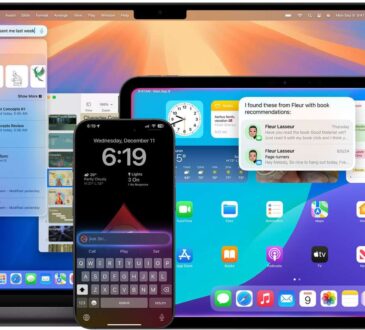
It has been a little over a year since “Apple Intelligence” officially landed on our Macs with macOS Sequoia. At first, it was just a cool party trick (“Look, my computer can generate an emoji of a cat eating a taco!”). But now, in 2026, it has quietly become the most useful utility since Command+Z.
If you are still ignoring that glowing “Writing Tools” menu because you think AI is just for tech bros or chatbots, you are missing out. Your Mac is now a full-time editor, ghostwriter, and summarizer, and it works in the most boring apps imaginable, even TextEdit.
Here is how to actually use Apple Intelligence on your Mac without feeling like a robot.
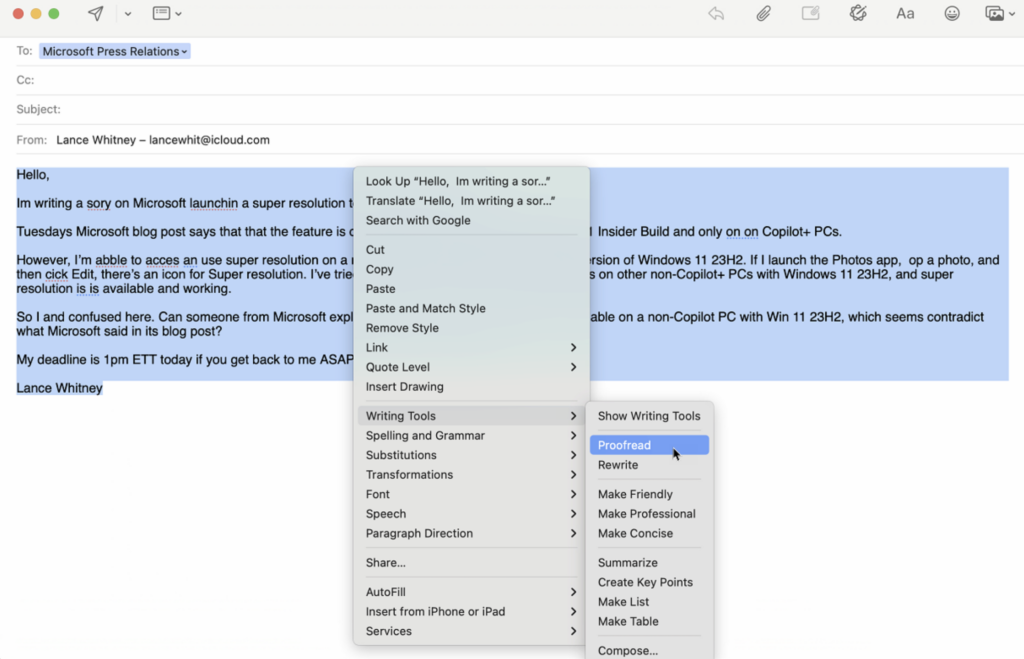
1. The Magic “Right-Click” (Writing Tools)
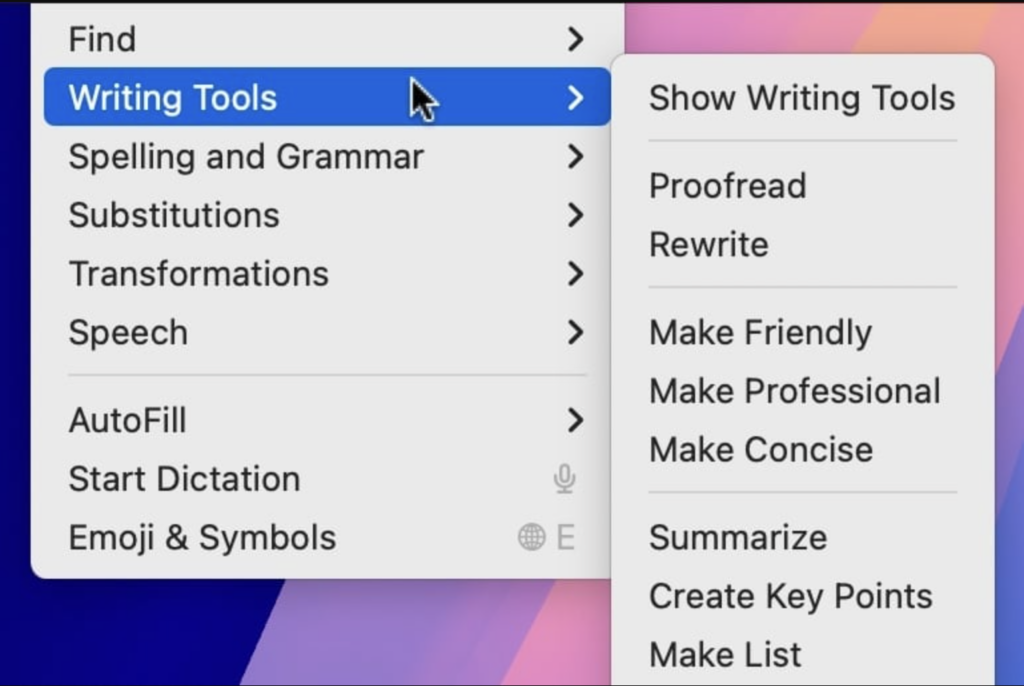
The biggest mistake people make is looking for a dedicated “AI App.” There isn’t one. Apple Intelligence lives in your right-click menu.
Whether you are in Mail, Notes, TextEdit, or even third-party apps, the workflow is the same:
- Highlight some text (a paragraph you wrote, or a long document you received).
- Control-Click (Right-Click) on it.
- Hover over Writing Tools.
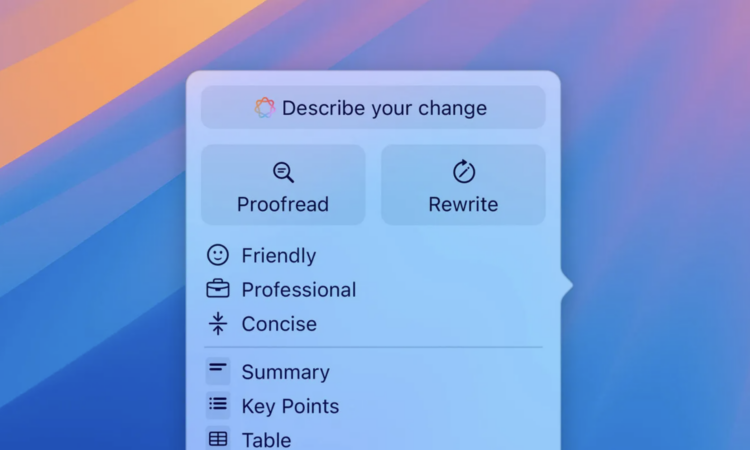
Boom. You now have a panel of options that can save your career.
2. The “Rewrite” Feature: Saving You from Yourself
We have all been there: You are angry, and you type an email to your boss that starts with, “Per my last email, as I clearly stated…”
Do not send that.
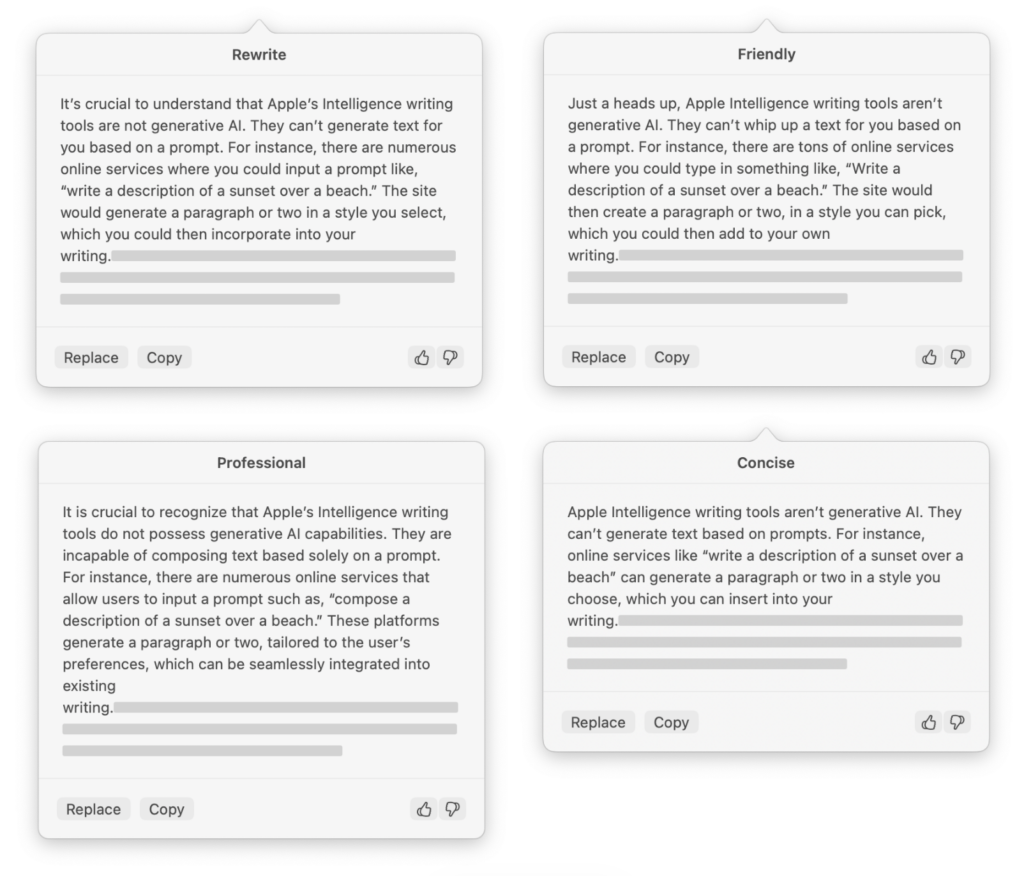
Instead, highlight your angry rant, go to Writing Tools > Rewrite, and select “Professional”. Apple Intelligence will strip out the passive-aggressiveness and replace it with, “As previously noted, the project details are attached.” It turns your emotional outbursts into corporate-safe communication instantly.
- Friendly: Great for softening a blunt text to your partner.
- Concise: Perfect for when you realized you just wrote a 400-word essay to ask a simple question.
3. TextEdit is Finally Cool
For 25 years, TextEdit was just that basic digital scratchpad we used to strip formatting from text. But because Apple Intelligence is system-wide, TextEdit is now a powerful AI word processor.
- The Scenario: You are sketching out a rough blog post or a cover letter in TextEdit. It’s messy, full of typos, and rambling.
- The Fix: Select all > Proofread. Unlike the old red squiggly lines that just checked spelling, the new Proofread tool analyzes grammar, sentence structure, and flow. It’s like having a strict English teacher living inside your M4 chip.
4. Summarization: The “TL;DR” Button
If you open a 50-page PDF in Preview or a massive email thread in Mail, you don’t actually have to read it. (I won’t tell).
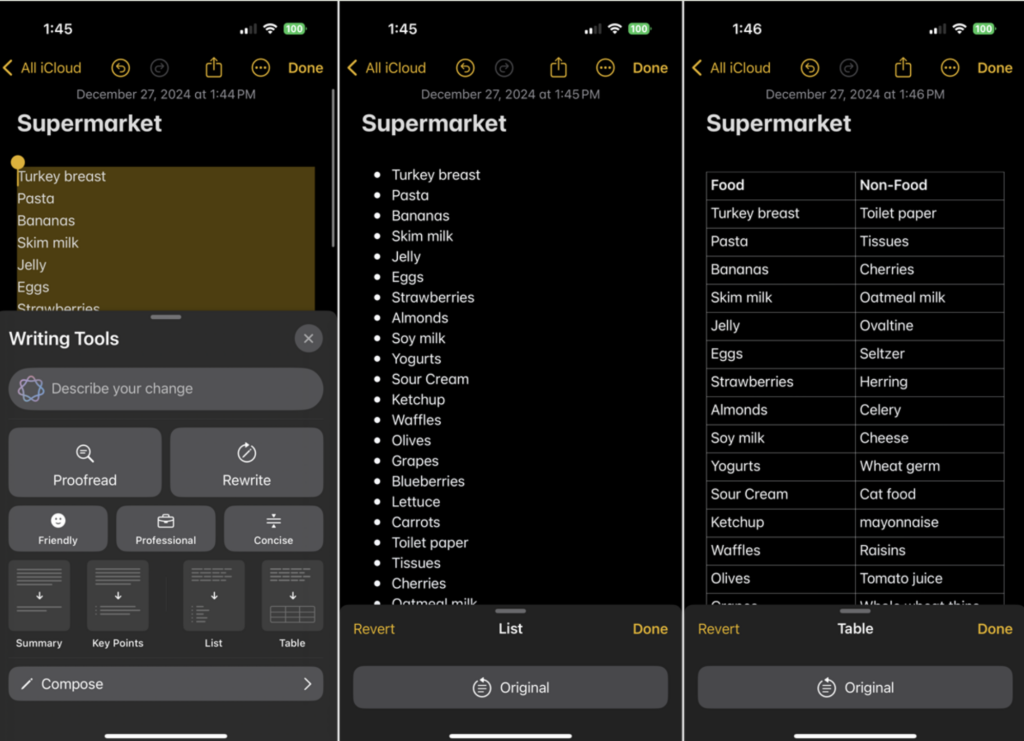
Highlight the text and choose Summarize. You can even ask for it in Key Points or a Table.
- Pro Tip: This works amazingly well for “Terms of Service” agreements or long recipes where you just want the ingredients list.
5. Hot News: The Gemini Partnership
Just this week (January 12, 2026), Apple dropped a bombshell. While the on-device “Apple Intelligence” handles your private data (rewriting emails, summarizing notes), they have officially confirmed a partnership with Google Gemini to power the next generation of Siri for broader world knowledge.
This means later this year, when you ask Siri a complex question that your Mac can’t answer locally, it will tap into Google’s Gemini models, giving you the best of both worlds without you needing to install a separate app.
The Verdict
The beauty of Apple Intelligence in 2026 is that it is boring. It’s not trying to chat with you or fall in love with you. It just sits there, waiting for you to right-click, ready to fix your typos and make you sound smarter than you are.
So, go ahead. Open TextEdit, type something messy, and let your Mac clean it up.