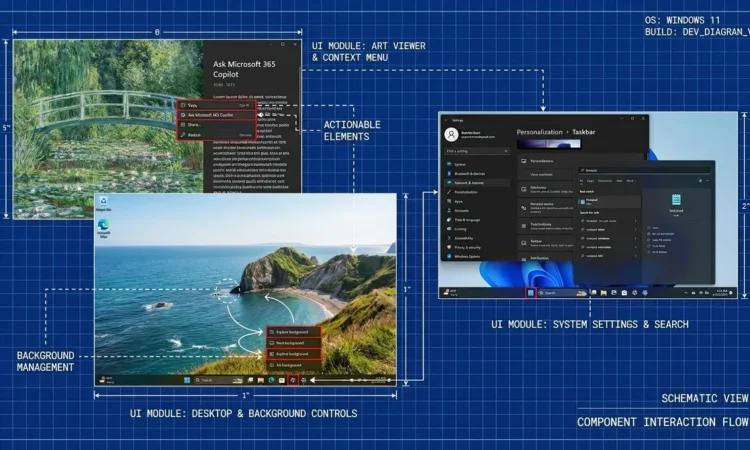
Windows 11 has been quietly introducing features to your computer all year, while you weren’t looking. Microsoft’s strategy of gradually rolling out updates means that many genuinely useful tools often go unnoticed, waiting for you to stumble upon them.
Here are ten features that probably exist on your PC right now, even if you’ve never noticed.
1. AI Actions in File Explorer
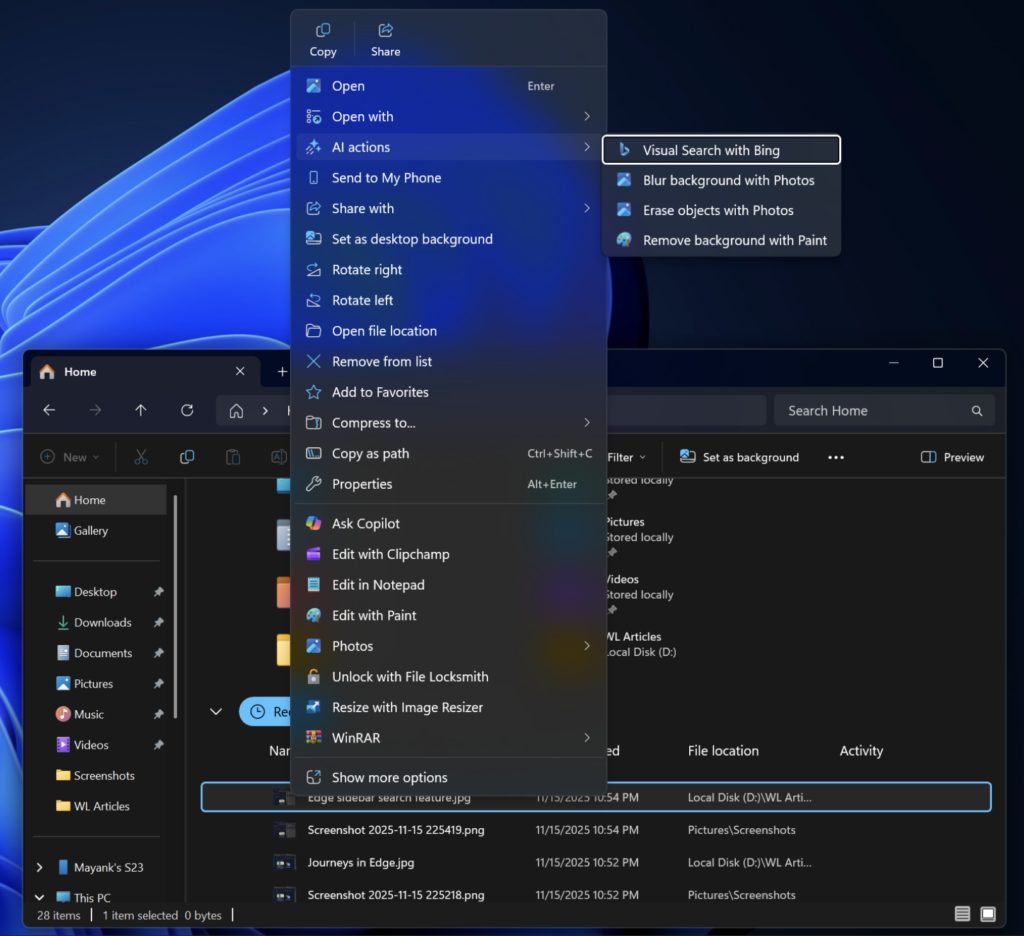
Right-click any image in File Explorer, and you’ll find shortcuts to AI-powered editing tools. AI actions in File Explorer let you interact more deeply with your files by right-clicking to quickly take actions like editing images or summarizing documents.
The feature connects directly to Paint’s background removal tool, Photos app blur effects, and Bing’s visual search. Instead of opening Paint, finding the background removal feature, and importing your image, you right-click the file and select “Remove background.” The image opens in Paint with the tool already active.
This isn’t revolutionary AI magic – it’s smart shortcuts that eliminate three clicks from common tasks. Small convenience, but multiply it across a workday, and it adds up.
2. Administrator Protection
Administrator Protection enforces Windows Hello verification before approving administrator privileges, maintaining your normal user account in a safer low-privilege mode, and requiring Windows Hello Authentication for all admin-permission-related activities.
When you approve an admin task, the system creates a temporary hidden account specifically for that elevated action, then discards it once complete. This protects against malware even when admin credentials get compromised, since attackers can’t reuse temporary accounts that no longer exist.
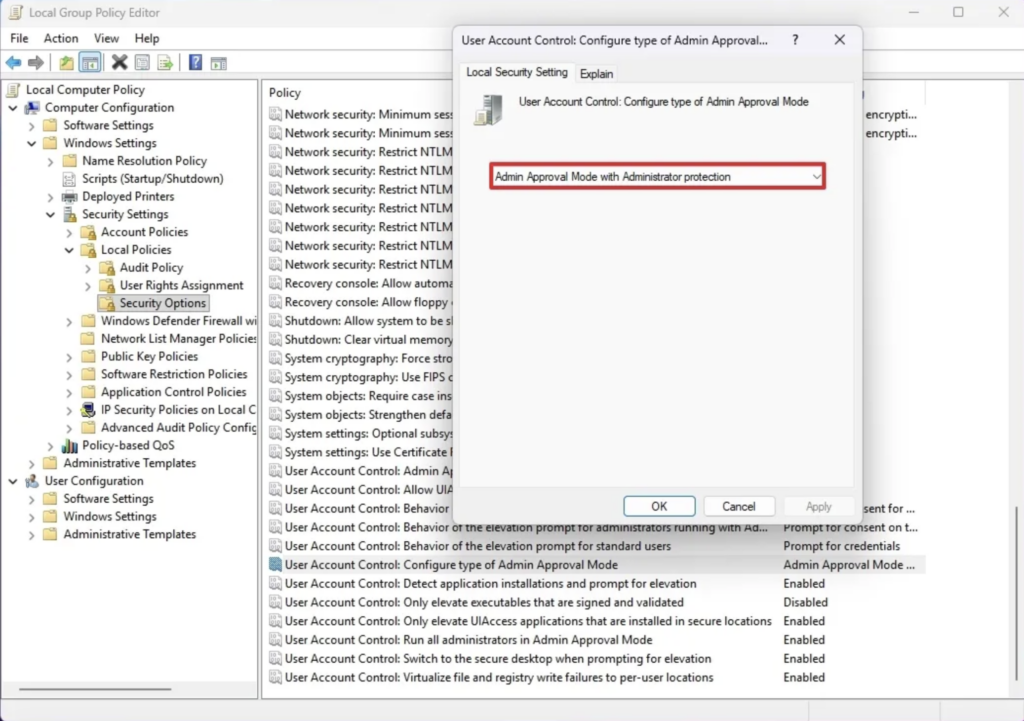
The feature is disabled by default, but network administrators can enable it through Microsoft Intune or Group Policy Editor. Look for it under Computer Configuration > Windows Settings > Security Settings > Local Policies > Security Options.
3. Complete File Explorer Dark Mode
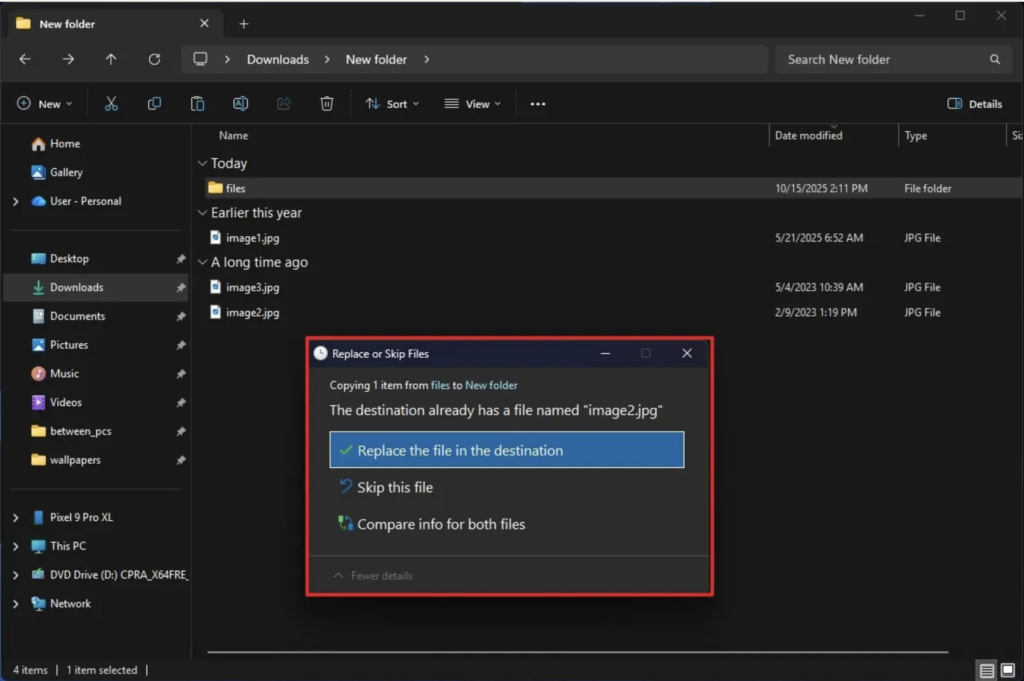
Dark mode finally extends beyond the main File Explorer window. Microsoft rolled out a more consistent dark mode experience for File Explorer, with dark theming across dialogs such as copy, move, and delete, plus improvements reaching progress bars, chart views, and confirmation dialogs.
Delete a file in dark mode? The confirmation dialog is now properly dark instead of blinding white. Copy progress bars match your theme. Error messages look consistent. These details seem trivial until you work at 2 AM and every bright white pop-up feels like a flashbang grenade.
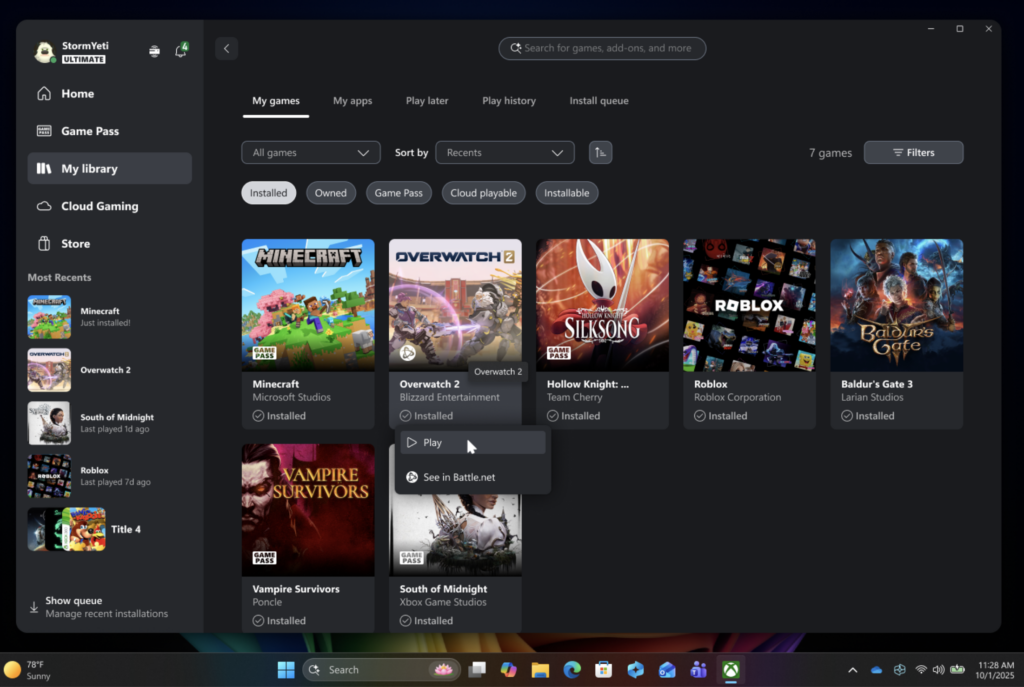
4. Xbox Full-Screen Experience for Handheld PCs
Full Screen Experience switches the traditional desktop into a console-like interface that’s easier to navigate with a controller using the Xbox app, reducing the complexity and resource overhead of the standard desktop, saving around 2GB of memory.
Originally exclusive to ASUS ROG Ally devices, the feature now works on more Windows 11 handheld gaming PCs. Enable it from Settings > Gaming > Full screen experience. Your handheld boots directly into a controller-friendly interface instead of struggling with a desktop designed for a mouse and keyboard.
The memory savings matter on devices with limited RAM. Shaving 2GB from system overhead gives games more breathing room.
5. Clipboard History
Press Windows + V instead of Ctrl + V and discover your clipboard has been remembering everything you’ve copied. Clipboard History shows your last several copied items, and you can even pin items you use regularly.
Copy five different snippets while researching something, then paste them all in order without going back to re-copy each one. Pin your email address or frequently used text templates for instant access. The feature technically launched in Windows 10 back in 2018, but remains surprisingly unknown.
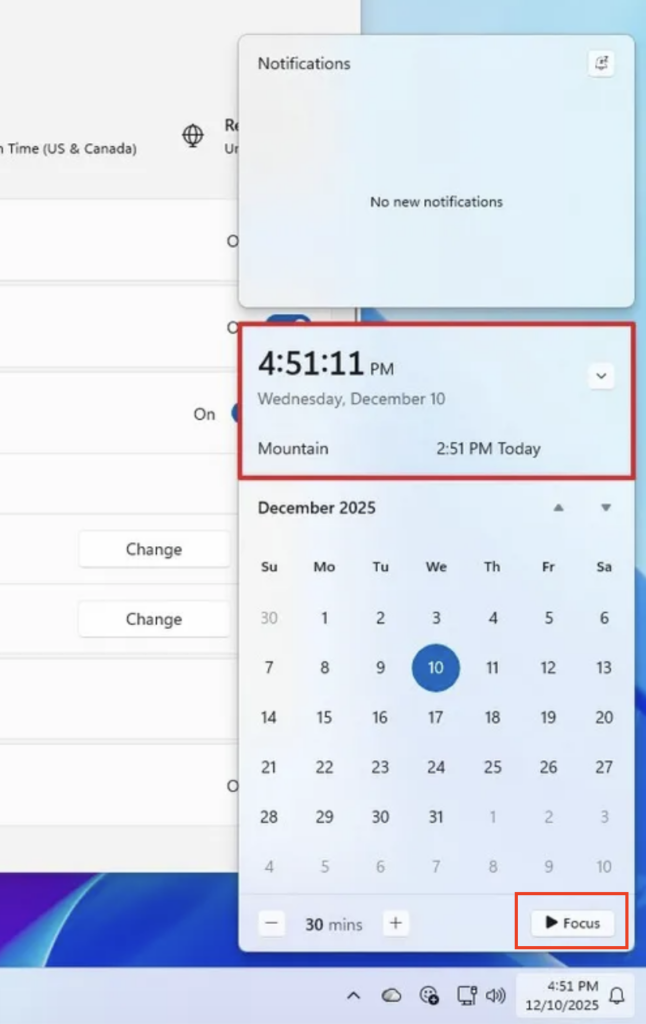
6. Focus Sessions in the Clock App
Focus Sessions in the Clock app help minimize interruptions with built-in timers. Open the Clock app, select Focus Sessions, set a timer, and Windows reduces notifications to help you concentrate.
Think of it as built-in Pomodoro technique support without downloading third-party apps. Set 25-minute focus blocks with scheduled breaks. The system dims non-essential notifications automatically. Nothing fancy, just functional focus management.
7. Snap Layouts for Window Management
Hover your mouse over the maximize button in the upper right corner of any window to see a grid of layout options for neatly organizing multiple apps on your screen.
Stop manually resizing windows to fit side by side. Hover over maximize, click a layout pattern, and Windows arranges everything perfectly. Need three windows visible simultaneously? The layouts handle it. Working on a vertical monitor? Specific layouts optimize for that orientation.
This feature exists because someone at Microsoft finally admitted that manually dragging window corners to line up perfectly is a terrible user experience.
8. Dynamic Refresh Rate for Battery Life
Windows 11 can automatically adjust how often the screen refreshes depending on what you’re doing, saving battery life without sacrificing smooth scrolling. Find the setting under Settings > System > Display > Advanced display, but only if your laptop supports it.
Scrolling through text? Your display runs at lower refresh rates to conserve power. Playing a game or watching a video? It bumps back up for smooth motion. The adjustment happens automatically without any input from you.
Laptops with high-refresh displays drain batteries fast. This feature extends runtime without requiring you to manually toggle between performance modes.
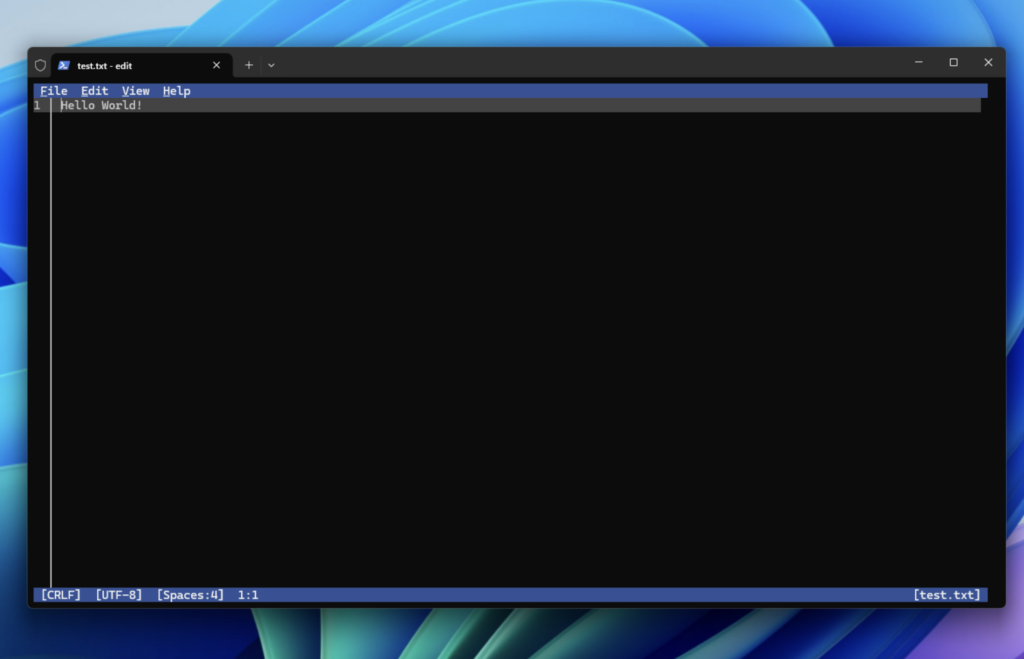
9. The Edit Command Line Text Editor
Edit, a command-line text editor, is now delivered with Windows, and you can quickly edit a file while in your terminal by typing edit followed by the file name.
Working in Command Prompt or PowerShell and need to modify a config file? Type “edit filename.txt” and a proper text editor opens right in your terminal. No more opening Notepad separately or struggling with arcane command-line editors.
The tool is open source on GitHub and includes modern features you’d expect from a terminal editor. For developers and power users, this quietly became one of the most useful additions to Windows in 2025.
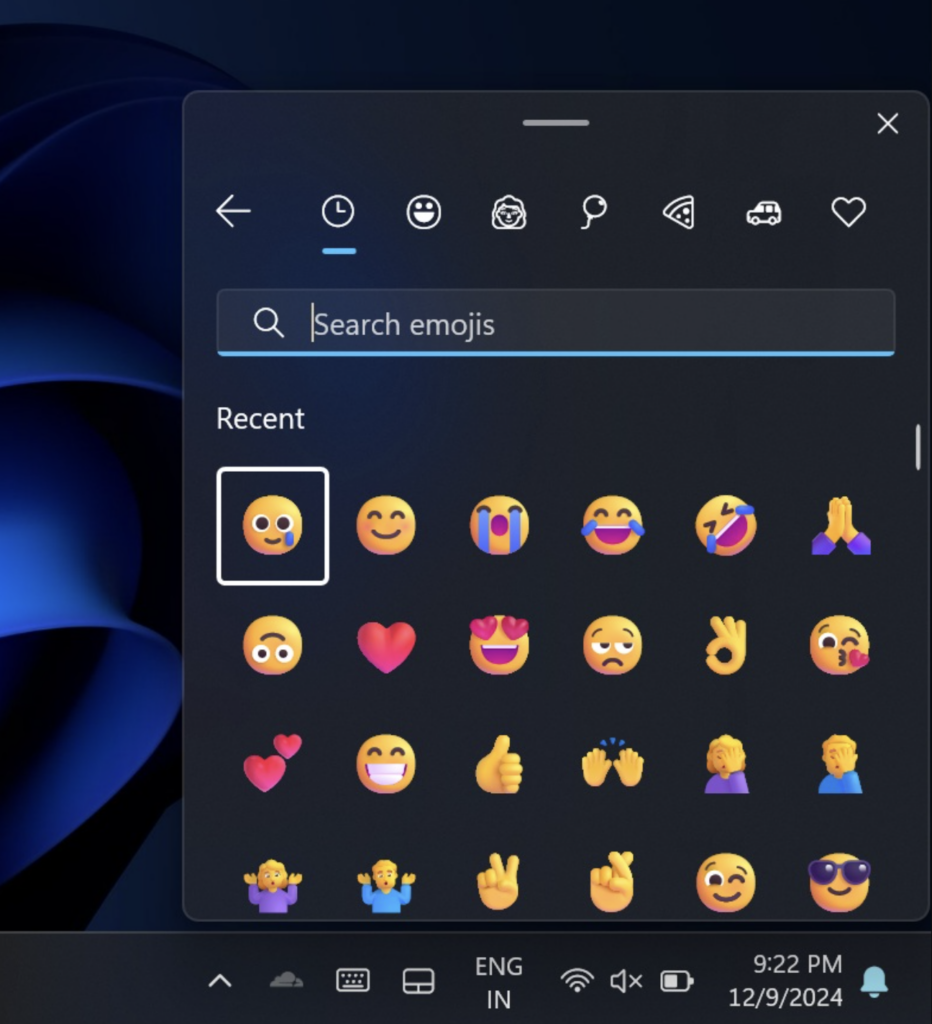
10. Emoji and Symbol Picker
Press Windows + period, and a pop-up gives you quick access to emojis, GIFs, and symbols, faster than searching the web when you need that degree symbol (°) or want to spice up a message with an emoji.
Stop googling “degree symbol” or hunting through the character map. Windows + period opens a panel with emojis, kaomoji, symbols, and GIFs. Need mathematical symbols? They’re organized by category. Want to add emphasis to a message? Emoji picker has you covered.
The feature saves approximately three seconds per symbol lookup. Over a year, that’s probably hours of accumulated time spent not searching for “copyright symbol copy paste.”
Why These Features Stay Hidden
Microsoft’s gradual rollout strategy means features arrive on different computers at different times. Your colleague might have AI Actions while you don’t, despite running identical Windows versions. The company calls this “Controlled Feature Rollout,” and while it prevents widespread bugs, it creates confusion about what actually exists.
Some features require specific hardware. Dynamic refresh rates need compatible displays. AI features demand NPUs capable of 40+ TOPS. Administrator Protection needs Windows Hello enabled. The operating system won’t show you features your hardware can’t support, which means many users never discover what’s possible on different machines.
Others hide because Microsoft redesigned or relocated them without fanfare. The emoji picker existed for years before most people discovered it. Focus Sessions lives inside the Clock app instead of somewhere obvious like Settings. Good features buried in unexpected locations might as well not exist.
Making Features Appear
Want to force features to appear? The open-source ViVeTool lets you manually enable features tied to specific IDs before official rollout. It’s safe but requires command-line comfort and feature ID research. Most users prefer waiting for natural rollout over command prompt adventures.
Check Settings > Windows Update regularly and install updates promptly. Many features arrive through monthly security updates rather than major version upgrades. That boring Tuesday patch might include the feature you’ve been reading about.
Enable “Get the latest updates as soon as they’re available” in Windows Update settings to join the early rollout group. You’ll receive features weeks or months before general release, though with a slightly higher risk of encountering bugs.
The Bottom Line
Windows 11 in 2025 became more capable while simultaneously becoming harder to fully understand. Features arrive quietly, hide in unexpected places, and vary between identical-looking installations. The operating system has genuinely useful tools that most users never discover simply because Microsoft’s rollout strategy prioritizes caution over visibility.
Take ten minutes to explore the Settings menus you normally ignore. Right-click files to see what options appeared recently. Try pressing Windows key combinations you’ve never used. Your computer probably has capabilities you purchased but never activated.
The best Windows features aren’t the ones Microsoft advertises loudly. They’re the small conveniences hiding in plain sight, waiting for you to stumble across them and wonder how you ever worked without them.